LCPcertified Quick Start Guide
The following is a quick guide to create a project, enter payroll information, certify payroll and add rate sheets in LCPcertified. The login portal for LCPcertified can be located here.
Creating a Project
The project being worked on must be entered before a CPR report can be created. To create a project, select the Add New Project option under the Projects tab. 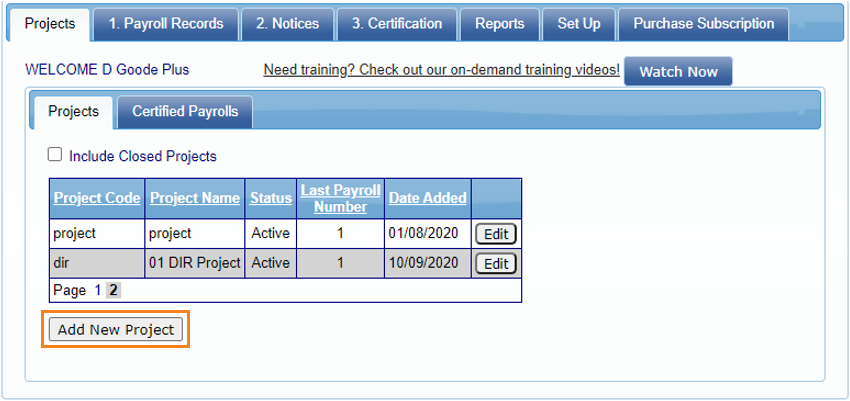
All fields with a red asterisk (*) are required, all other fields are optional. The CPR Format option is on this screen, choose the proper form depending on the project requirements (depending on location, there may only be one option). The CPR Format can be edited if the wrong option is selected.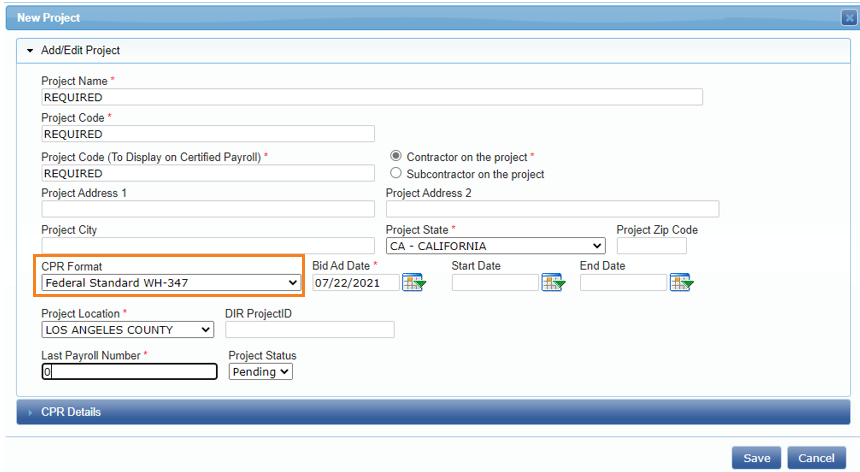
The CPR Details tab is optional additional information that can be filled out for a project, this information is also editable after the project is created, if needed.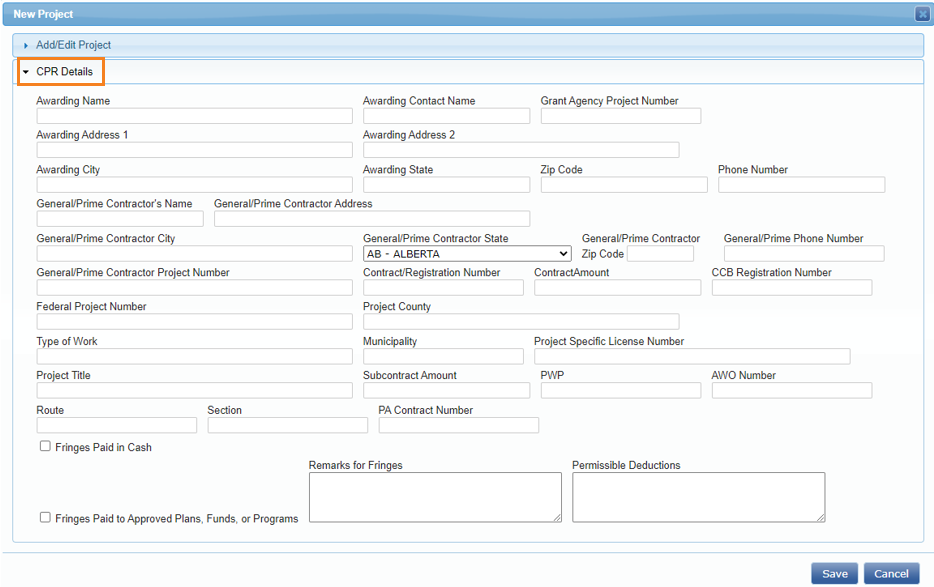
Note: Users within the State of California, the Bid Advertisement Date will need to be entered, as well as the location (county) of the project before system will allow the project information to be saved.
Uploading or Entering Payroll Records
After a project has been successfully setup payroll records can then be either uploaded or manually entered. Below are steps to complete an upload or manual entry.
Uploading Payroll Records
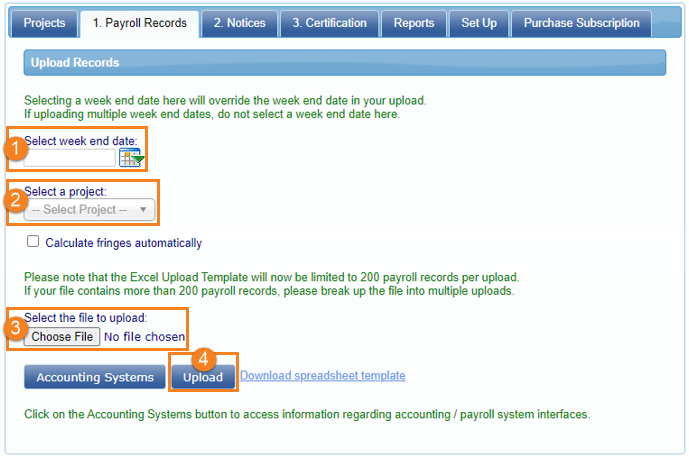
Select the 1. Payroll Records tab then select Upload Records.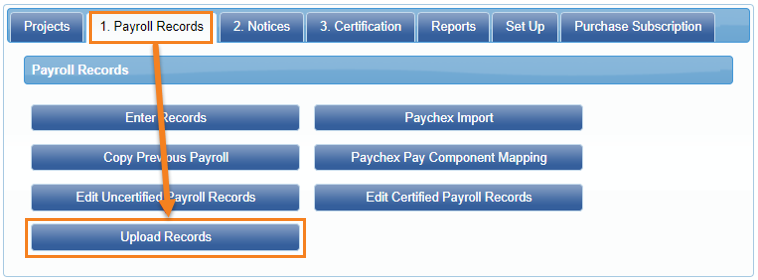
- Select the week end date for the payroll being uploaded.
- Select the project that payroll records are going to be uploaded for.
- Select Choose File and browse the computer and select the correct file upload.
- Select Upload, as the file is being uploaded the data check validations will run.
Manual Entry of Payroll Records
Select the 1. Payroll Records tab then select Enter Records. Note, to upload payroll records manually, employee information must already be entered. This can be done in the ‘Setup’ tab under ‘Add/Edit Employee’.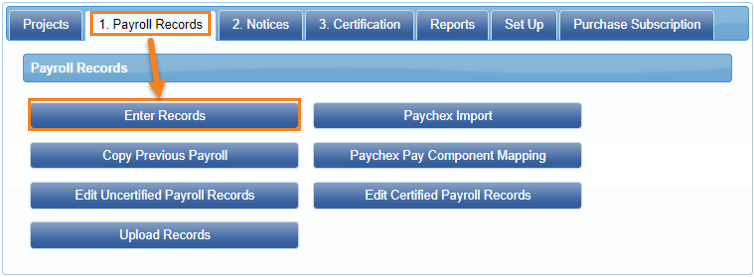
To manually create the payroll record:
1. Select the week end date using the calendar icon or type the date in MM/DD/YYYY format.
2. Select the project from the dropdown.
3. Select an employee from the drop down.
4. Select Next.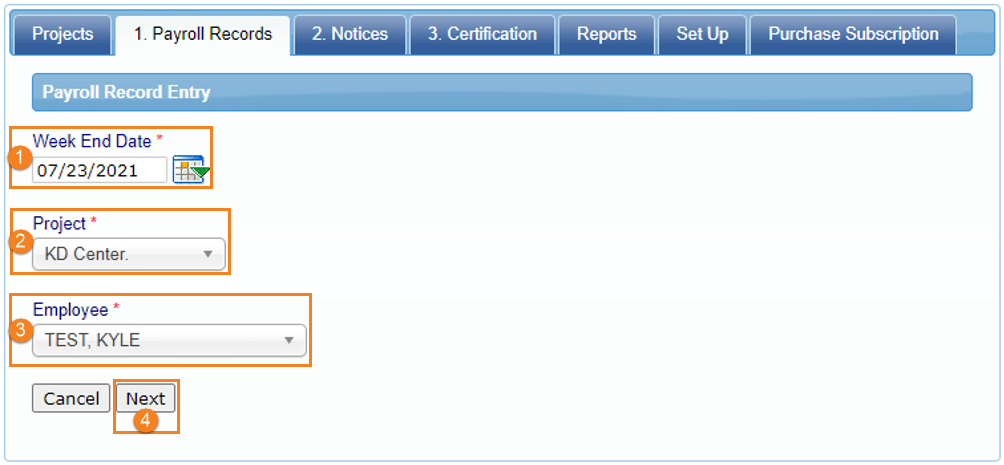
The second page of the Payroll record entry form (2 of 2) will appear. The upper portion of the form will automatically fill based on the information selected in the previous step. Tap or click through this screen to complete all information needed for the employee.
Repeat these steps for each employee that payroll records need to be entered for that week end date. 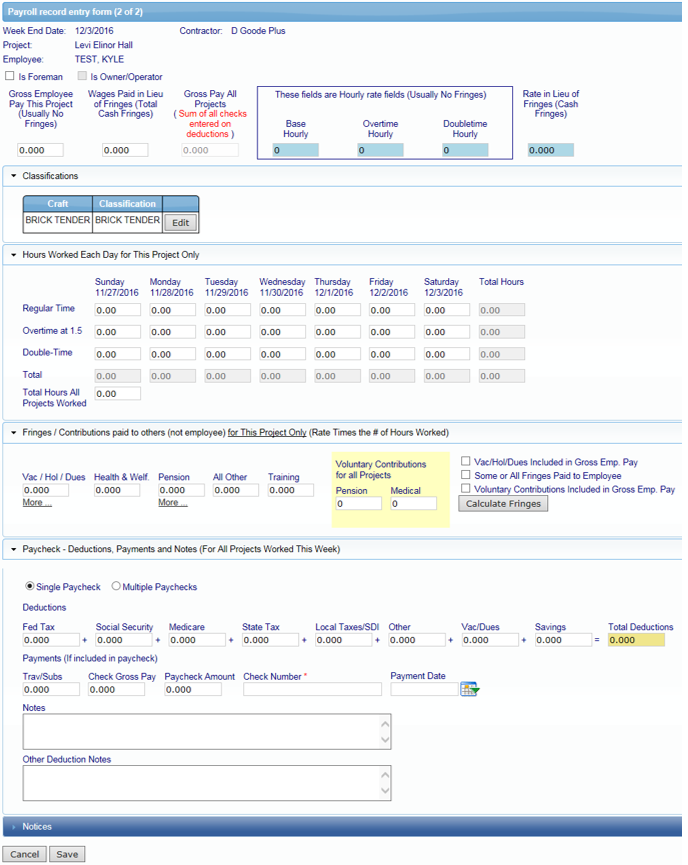
Checking for Payroll Errors
Based on Data Completeness, any missing information will cause payroll records to show under the 2. Notices navigation tab. E.g., blank hourly rate of pay; hourly overtime (if overtime hours reported); blank gross pay all projects or paycheck amount (net pay) etc.
Choose the project to review and a enter a date range if needed. A list of employee notices will appear. Select the employee to be reviewed.
The Notices section is located at the bottom of page. The notices will assist in correcting errors in the payroll record. 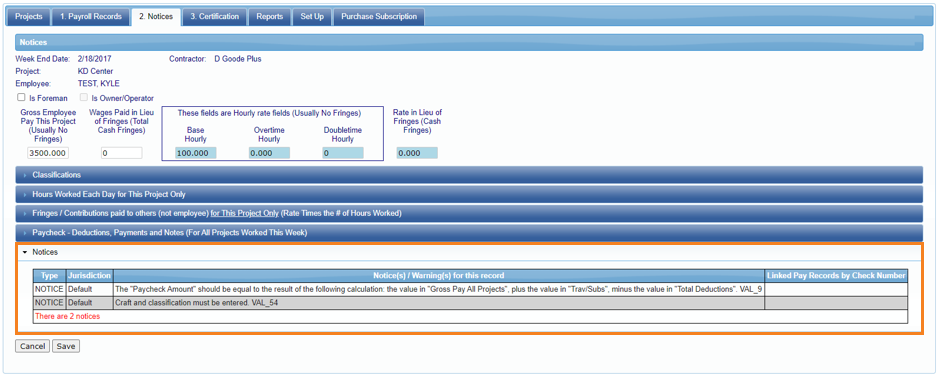
Producing a Certified Payroll Report (CPR)
The following is how to complete a certification of your payroll and generate a CPR in the 3. Certifications tab.
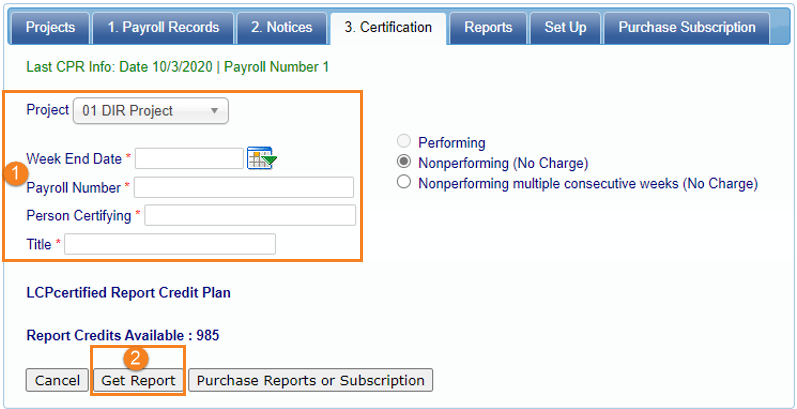
- Choose the project, the Week End Date will auto-populate based on pending records, Payroll Number; Name and Title of Person Certifying.
- Select Get Report.
- Note: if there are no available credits, select ‘Purchase Reports or Subscription’ this must be completed before a CPR can be generated.
- The payroll report is now saved and can be viewed/edited as needed.
All CPR’s can be edited and reprinted free of charge! A subscription is needed to be purchased for future reports.
Updating the Certification Subscription
When the Purchase Reports or Subscription option is selected, choose the subscription desired and select Purchase. A new window will appear for company and credit card information.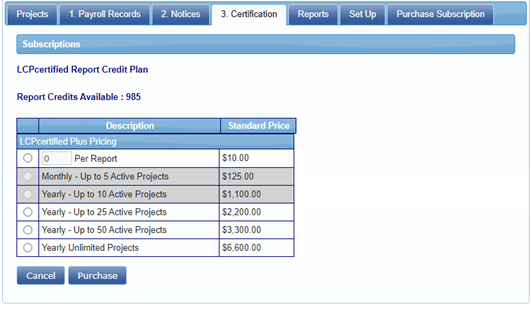
Adding Rate Sheets
For those within California and using the California State Rates, rate sheets do not need to be entered. Only craft matching is required after the payrolls have been updated.
However, if the project does incorporate California State Rates (perhaps Federal DOL or some other special rates). Please see the LCPcertified Contractors User’s Manual under the eTraining link and review the section titled Add/Edit Rate Sheets.
Contacting the LCPtracker Support Team
If assistance is needed, please contact our LCPtracker Support team:
- 714-669-0052 option 4,
- or Live Chat,
- or support@lcptracker.com
Please Note:
- This is intended as general information only and does not carry the force of legal opinion.
- Please consult your own legal and accounting advisors with any relevant questions.
- LCPtracker makes no express or implied guarantees.
- The Federal Register, the relevant State rules, and the Code of Federal Regulations remain the official source for regulatory information.
Was this article helpful?
That’s Great!
Thank you for your feedback
Sorry! We couldn't be helpful
Thank you for your feedback
Feedback sent
We appreciate your effort and will try to fix the article