As of January 2020, weekly certified payroll reports are required to be filed online with Washington State Department of Labor and Industries, or WA L&I, at least once a month for all public works projects.
The following training document will describe information regarding account set up and functionality of using LCPcertified to generate the XML file that can then be uploaded directly to WA L&I’s submittal portal.
This guide will explain steps for both LCPcertified Plus and LCPcertified Professional.
The following will be outlined in this guide:
- How to find instructions and resource information on the WA State L&I website.
- Understanding the certified payroll data on the XML file exported from LCPcertified.
- Contractor information, including how to properly set up projects, payroll data, employee profiles and apprentice information with WA State L&I required information.
Keep in mind that requirements for the WA L&I CPR upload may change over time. It is the responsibility of the Contractor to follow and meet the regulations set forth by WA State L&I.
WA State L&I Resources
Below are links or information to resource material published by Washington State Dept of Labor & Industries. LCPcertified will attempt to maintain links to the most current information on the L&I website. Verifying legislation or resource material directly with WA L&I is recommended.
Any questions on utilizing WA L&I’s portal to register and submit certified payrolls should also be directed to WA L&I.
As of January 2020, weekly certified payroll reports are required to be filed online with L&I at least once a month for all public works projects.
In 2019, the legislature passed ESSB 5035, adding this requirement to the prevailing wage laws within chapter 39.12 RCW, review the new RCW 39.12.120 to learn more.
Click here to find out more information on the WA L&I website as well as to view requirements for data collection.
Creating or Accessing an L&I Account
The Prevailing Wage Intent & Affidavit (PWIA) system is easily accessible through My L&I or Secure Access Washington (SAW).
Create a My L&I account to sign up for PWIA portal access. This will allow you to file required forms and manage certified payroll records.
File the Intent
The ‘Statement of Intent to Pay Prevailing Wages’ should be filed immediately with WA L&I after the contract is awarded and before work begins. This can be done online from the PWIA portal. To complete this filing, you will need the basic information about the project (who, what, where, and when of what’s involved).
An ‘Intent ID’ number will be issued to each contractor for every project. This ID will be required to enter in LCPcertified to create a successful XML file that can be uploaded to the WA State portal.
WA L&I Training Videos and Guides
View training videos and step-by-step instructions to learn how to access and file certified payroll online through the PWIA portal. By using LCPcertified, you will be able to simply upload your payrolls through an XML file. This upload ability will save time and eliminate the manual entry of payroll data into the portal.
Apprentice Training and Information
The link to the public WA State Apprentice Registration and Tracking System (ARTS) can be found here. More information can also be located under the Apprentice Information sections in this guide.
Prevailing Wage Information
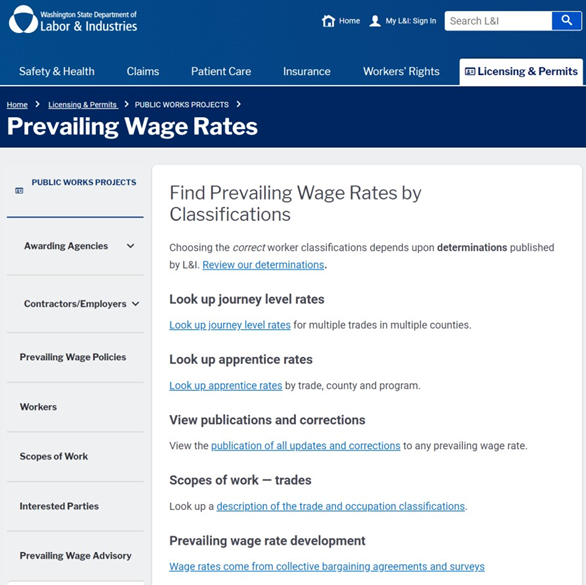
Washington State Department of Labor & Industries regularly maintains a comprehensive website that provides education on prevailing wage regulations as well as the published prevailing wage rates for each trade. This includes rates for both Journeymen and Apprentices.
The link here will take you to the website maintained by WA L&I.
Which rates (effective date) should you select?
The prevailing wage rates, in a particular county, are determined by the bid due date for a public works project and these rates apply to that project until it is completed, unless the contract award date is six months or more after the bid due date. In this case the award date would determine the rates to be paid.
The bid due date is the date that General Contractor bids for the project are due to the Awarding Agency. All sub-contractors use this same bid due date and award date.
When are Prevailing Wage rates updated?
Updated Prevailing Wage rates are published twice each year:
- The first business day of February (effective 30 days later).
- The first business day of August (effective 30 days later).
XML Schema
As of January 1, 2020 the most current XML schema, in full, issued by WA L&I can be found here.
Below are some of the elements defined by the XML schema and will be populated by data entered into LCPcertified. For all elements, please refer to the full schema.
LCPcertified collects some additional information that is either not required to be reported by WA L&I or does not have distinct line items to define the information. In some cases, LCPcertified has combined information to submit into one category in the schema.
For example, all Federal, State and Local Taxes will all be combined into the XML element, ‘Tax Withholding’.
XML Schema Element | Description Provided by WA L&I | Detailed/Additional Information |
intentID | The unique identifier for the Intent to Pay Prevailing Wage (Intent) form filed with the Prevailing Wage program of Washington State Department of Labor and Industries (LNI) on a public works project to which these Certified Payroll Reports apply. LNI generates this id when the intent is entered into the system | This will be pulled in LCPcertified from the “WA State Intent ID” field on the Project Set Up page. |
amendedFlag | True indicates the provided information amends the existing Certified Payroll Report for the week | True if the CPR has been recertified in LCPcertified |
amendedDate | Date the Certified Payroll Report for the week was amended | Date the CPR was recertified in LCPcertified |
amendReason | Reason the Certified Payroll Report for the week was amended. | Any notes entered into the “remarks” section on recertification |
ssn | The full 9-digit social security number of employee | WA LNI currently requires the full SSN be submitted for each employee |
ethnicity | The ethnicity of employee as enumerated by LNI. |
|
gender | The gender of employee as enumerated by LNI. (? = prefer not to answer) |
|
veteranStatus | The US veteran status of employee as enumerated by LNI. (? = prefer not to answer) |
|
grossPay | The gross pay of employee for the week. Includes all pay for all work for the week. | Amount will be “Gross Pay All Projects” in LCPcertified |
fica | The amount of FICA deduction from pay of employee for the week | Amount will be addition of the following “Deductions” in LCPcertified:
|
taxWitholding | The amount of income tax withholding deduction from pay of employee for the week | Amount will be an addition of the following “Deductions” in LCPcertified:
|
otherDeductions | Collection of other deductions from pay of employee for the week | Other Deduction amounts will be listed for the following standard “Deduction” fields in LCPcertified:
|
trade | Washington state prevailing wage trade in which the employee worked. | Please refer to Appendix A for full list of trade codes. |
jobClass | The Washington state prevailing wage job classification (occupation) in which the employee worked. The job classification (occupation) can be found on the Washington State Department of Labor and Industries public web site. | The job classification will be the “Classification” listed in LCPcertified in the rate sheet that has been created and assigned to your project. *Please note that this field will be blank for Apprentices per the XML schema instructions. |
county | Washington county in which the work was done. | Please refer to Appendix B for full list of counties. |
regularHourRateAmt | The hourly wage rate ($/hour) the employee was paid for the regular hours report for the week in this tradeHoursWage occurrence |
|
overtimeHourRateAmt | The hourly wage rate ($/hour) the employee was paid for the overtime hours report for the week in this tradeHoursWage occurrence |
|
doubletimeHourRateAmt | The hourly wage rate ($/hour) the employee was paid for the doubletime hours report for the week in this tradeHoursWage occurrence |
|
hourlyPensionRateAmt | The hourly retirement benefit rate ($/hour) the employee was paid for the hours report for the week in this tradeHoursWage occurrence | Amount will be an hourly amount of the following “Fringe Benefit” in LCPcertified: Pension |
hourlyMedicalAmt | The hourly health and welfare benefit rate ($/hour) the employee was paid for the hours report for the week in this tradeHoursWage occurrence | Amount will be an hourly amount of the following “Fringe Benefit” in LCPcertified: Health & Welfare |
hourlyVacationAmt | The hourly vacation benefit rate ($/hour) the employee was paid for the hours report for the week in this tradeHoursWage occurrence | Amount will be an hourly amount of the following “Fringe Benefit” in LCPcertified: Vacation/Holiday/Dues |
hourlyHolidayAmt | The hourly paid holiday benefit rate ($/hour) the employee was paid for the hours report for the week in this tradeHoursWage occurrence | This amount will be blank as it is reported together under the “hourlyVacationAmt” |
apprenticeBenefitAmt | The hourly apprentice training fund benefit rate ($/hour) the employee was paid for the hours report for the week in this tradeHoursWage occurrence | Amount will be an hourly amount of the following “Fringe Benefit” in LCPcertified: Training |
WageId | LNI internal identifier of prevailing for job/occupation | This will be assigned by WA L&I after the XML file has been uploaded to the PWIA Portal. |
apprenticeFlg | The apprentice flag indicates that the employee was working as an apprentice for this tradeHoursWage occurrence. If true, then the job class should not be populated and the apprentice Id, program, state, occupation, and step should be populated | An employee will be recognized as an Apprentice if the letters “appr” are found in either the craft or classification of the trade selected for the employee. |
apprenticeId | The apprentice id of employee from ARTS (Apprentice Registration and Tracking System). Needs to be provide if apprentice flag is true. | This will be populated with what is entered into the field “Apprentice ID” in the LCPcertified employee set up page. |
apprenticeState | The apprentice state of employee from ARTS (Apprentice Registration and Tracking System). Needs to be provide if apprentice flag is true. | This will be populated with what is entered into the field “State Trained” in the LCPcertified employee set up page. |
apprenticePgmOccpnId | LNI internal identifier of prevailing for apprentice program | This will be assigned by WA L&I after the XML file has been uploaded to the PWIA Portal. |
apprenticePgmName | The apprentice program name of employee from ARTS (Apprentice Registration and Tracking System). Needs to be provide if apprentice flag is true. | This will be populated with what is entered into the field “Apprentice/Training Program” in the LCPcertified employee set up page. |
apprenticeOccpnName | The apprentice occupation of employee from ARTS (Apprentice Registration and Tracking System). Needs to be provide if apprentice flag is true. | This will be populated with what is entered into the field “Program Occupation” in the LCPcertified employee set up page. |
apprenticePgmOccpnStepCalcId | LNI internal identifier of prevailing for apprentice step | This will be assigned by WA L&I after the XML file has been uploaded to the PWIA Portal. |
apprenticeStepName | The apprentice step name for the employee. Needs to be provide if apprentice flag is true. | This will be populated with what is entered into the field “Apprentice Period/Level/Step” in the LCPcertified employee set up page. |
apprenticeStepBeginHours | The apprentice begin hours of the step for the employee. Needs to be provide if apprentice flag is true. | This will be populated with what is entered into the field “Step Begin Hours” in the LCPcertified employee set up page. |
apprenticeStepEndHours | The apprentice end hours of the step for the employee. Needs to be provide if apprentice flag is true. | This will be populated with what is entered into the field “Step End Hours” in the LCPcertified employee set up page. |
‘regularDay1Hours’ through ‘regularDay7Hours’ | The regular hours worked by the employee days 1 through 7 of the pay week for this tradeHoursWage occurrence |
|
‘overtimeDay1Hours’ through ‘overtimeDay7Hours’ | The overtime hours worked by the employee days 1 through 7 of the pay week for this tradeHoursWage occurrence |
|
‘doubletimeDay1Hours’ through ‘doubletimeDay7Hours’ | The doubletime hours worked by the employee days 1 through 7 of the pay week for this tradeHoursWage occurrence |
|
tradeBenefits | Collection of other hourly usual benefits (fringe) paid to the employee this tradeHoursWage occurrence | See below |
benefitHourlyName | The name of other hourly usual benefit (fringe) paid to the employee this tradeHoursWage occurrence | From LCPcertified, this may include: Rate in lieu of fringes (cash fringes) |
benefitHourlyAmt | The amount of other hourly usual benefit (fringe) (($/hour) paid to the employee this tradeHoursWage occurrence |
|
LCPcertified – Plus
Overall Set Up Steps
- Enter a Rate Sheet.
- Enter or Update Employee Profiles.
- Review what information is required by WA L&I.
- Enter Apprentice Information required by WA L&I.
- Set Up a Project.
- Enter and Certify Payroll.
- Export and save the XML file to your computer or other storage receptacle. This step needs to be completed for:
- Performing CPRs.
- Non-Performing CPRs.
- Amended CPRs.
- Log into the WA State PWIA portal and upload the XML file as directed. Contractors will fill out a Statement of Compliance on upload.
Rate Sheet Set Up
LCPcertified users who wish to utilize the WA L&I XML file will need to use LCPcertified’s Rate Sheet functionality.
This feature is used to create the Craft and Classifications that will display on your Certified Payroll and WA L&I XML file.
This set up step only needs to be done once and then can be used for all future payrolls going forward. Navigate to the ‘Set Up’ tab and select ‘Add/Edit Rate Sheets’.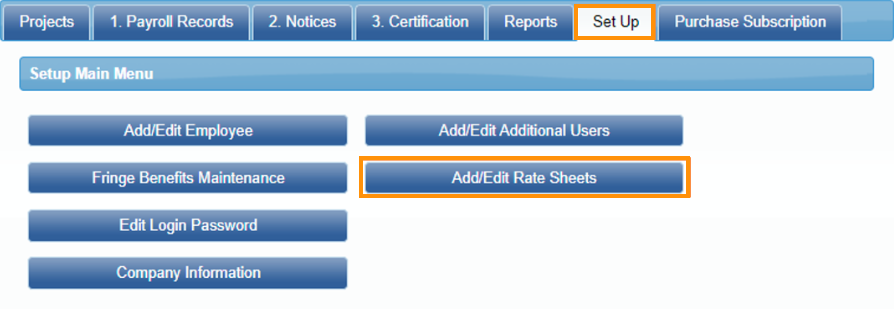
To create a new rate sheet, click on Add/Edit Rate Sheet.
It is recommended that you name your rate sheet something that clearly distinguishes the wages for WA State prevailing wages.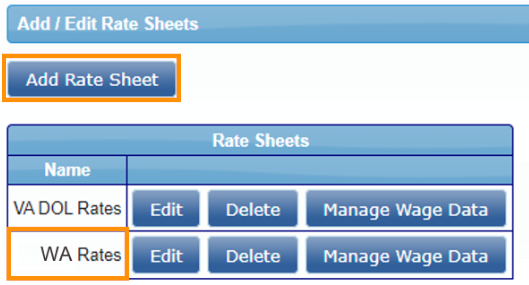
Entering the prevailing wage rates for each craft is optional in LCPcertified. It is highly recommended as it will assist in meeting the set requirements before submitting the certified payrolls to the Washington State Department of Labor & Industries.
For example, the WA L&I website publishes prevailing wage rates for the various scopes of work for Carpenters. These rates will vary based on the county of work, the bid due date for your project and if your employee is a Journeyman or Apprentice.
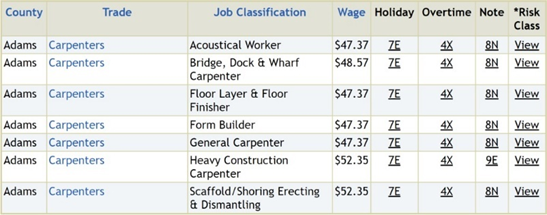
After naming your rate sheet, click on Manage Wage Data to add the crafts and classifications. For the first craft/classification entered, you will need to create identifiers for your set of wages.
The screenshot below displays one way to label your wages. Note that this information will not appear on the WA L&I XML file. 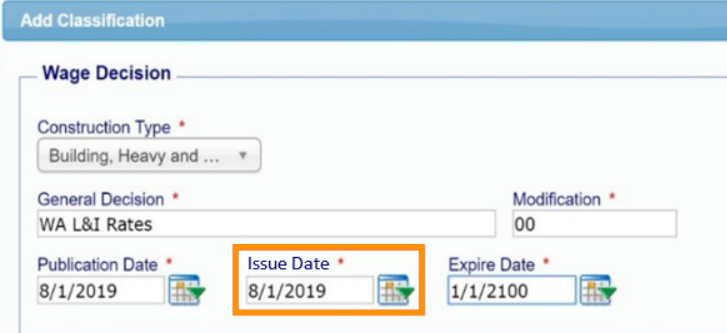
Next, enter a craft/classification and associated prevailing wage rates.
Again, entering prevailing wage rates is optional in LCPcertified, but is highly recommended.
The rates entered here should be the prevailing wage rates set forth by the WA State L&I and not necessarily what you may pay your employee.
Important for your XML file:
In the drop-down for Export Craft List, select ‘WA State L&I’ and then select the appropriate ‘Export Craft Name/Code’.
For assistance on what each craft code is associated with a specific craft, please scroll to ‘Appendix A - Trade Codes’. 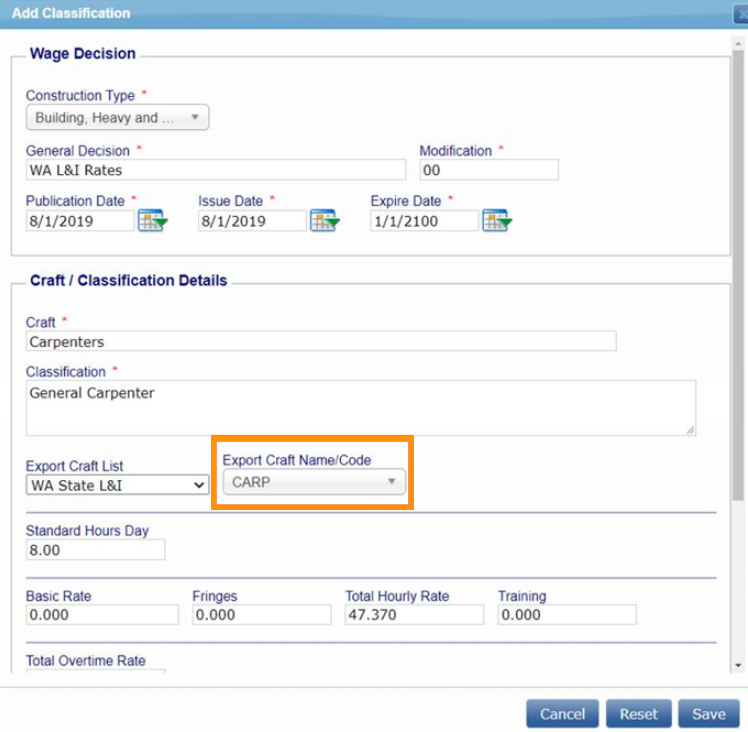
Once you have finished entering one craft, the system will prompt you to see if you are finished or would like to continue entering more craft/classifications.
If you would like to continue, click Add Another and simply begin typing in the next craft/classification.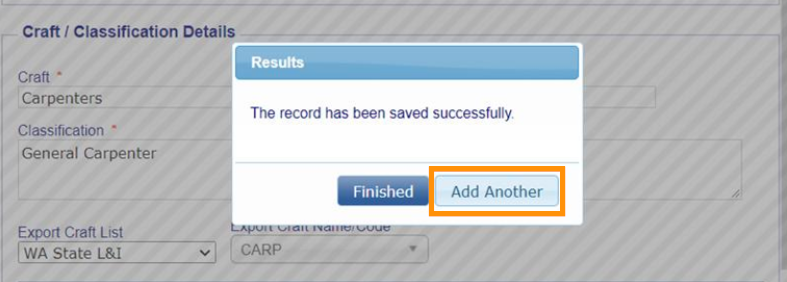
Apprentices
For Apprentice Trades, it is very important that the word ‘Apprentice’ be entered in either the Craft field OR the Classification field.
This will be how the LCPcertified knows to mark the employee as an apprentice on the XML file.
Additionally, the WA State portal requires several other pieces of information for Apprentices. It is very important that you complete setting up this up in the Employee Profile for each apprentice in LCPcertified. The next section of this guide reviews entering employees.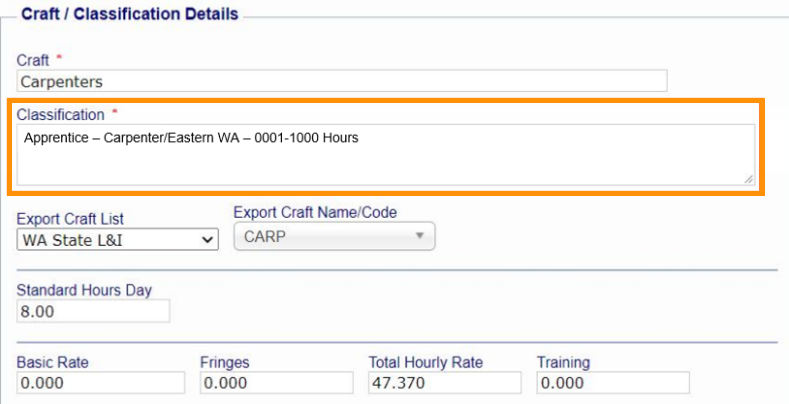
Once you have entered all your craft/classifications, you will be able to view what you have entered. In the column Export Matches, you can review what WA State L&I Craft Code was matched to each item.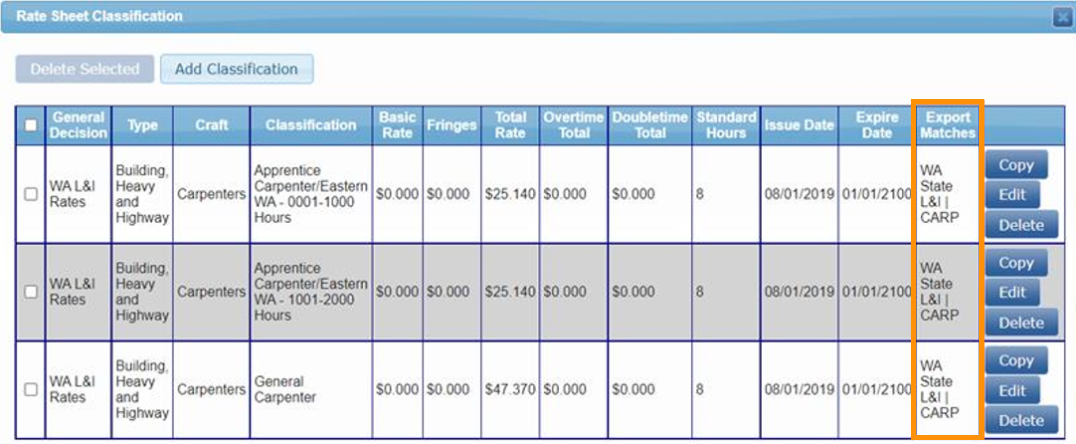
Employee Set Up
The fields marked with a red asterisk below notate the required employee information as set by WA L&I. LCPcertified recommends reviewing your employee profiles to ensure all required data has been entered and updated as needed.
Please see the next section for Apprentice information that also is required to be entered and properly maintained.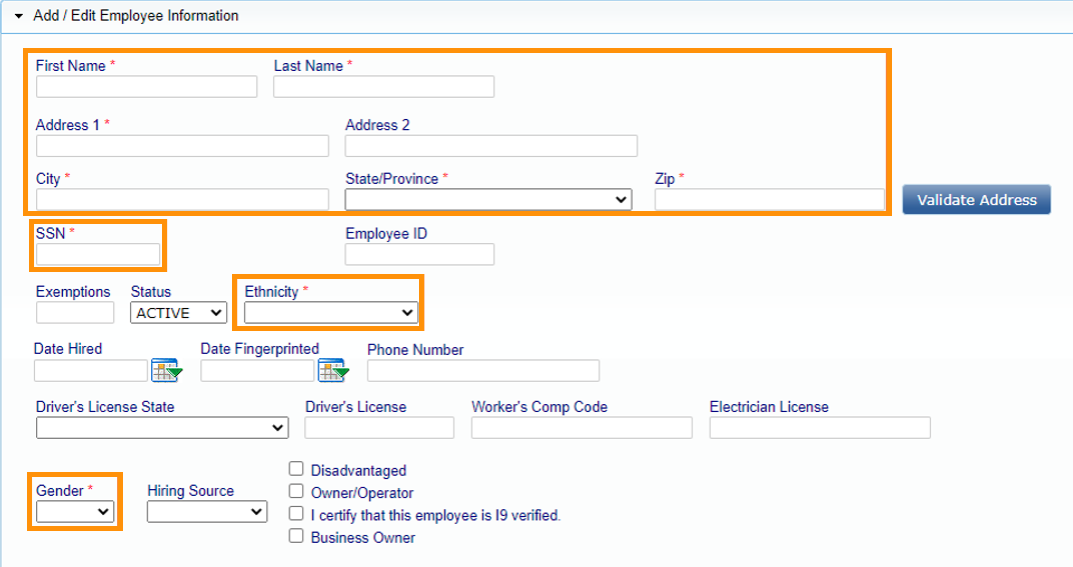

Please note that the information in this section will be important to remain current. The information entered here will be what displays on the XML file uploaded to the State of WA.
Apprentice Information
Next will be the steps for entering, approving, and maintaining apprentice information.
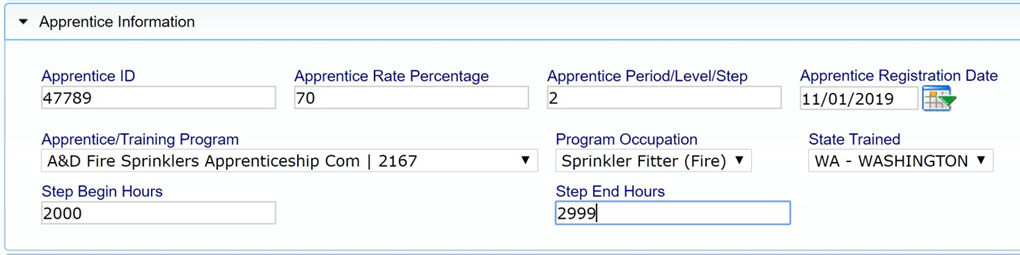
It will be up to each contractor to properly enter and maintain apprentice information (shown below).
Because the apprentice information on the XML file will be pulled from the Employee Set Up page, it will be critical that this is kept up to date by contractors.
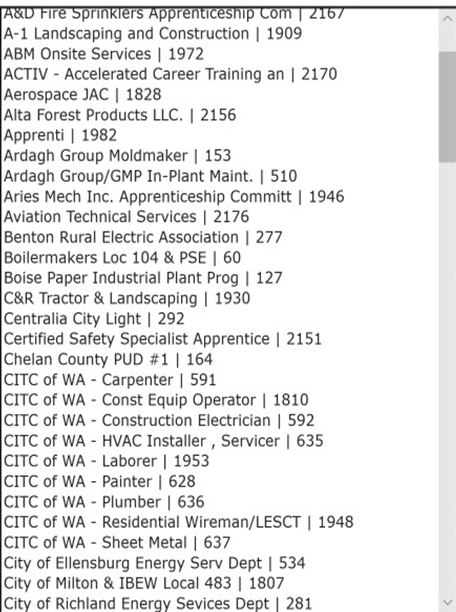
The list of Apprentice/Training Program information has been entered into LCPcertified, being pulled from the WA State L&I website. See screenshot below for an example.
Once an Apprentice/Training Program has been selected, the list of applicable Program Occupations and State Trained will populate with only those selections which apply to each program. Please refer to Appendix C for a comprehensive list of programs and associated information.
LCPcertified recommends reviewing the XML schema information to clearly understand what WA L&I has set up as required information for any employee that is submitted as an apprentice.
Apprentice/Training Program List Drop-down:
If you need assistance on locating this information for your Apprentice, WA L&I has an ‘ARTS’ or ‘Apprentice Registration and Tracking System’ public website where you can lookup employees by name or find more information on Apprentice programs. Please click here to navigate to their public website.
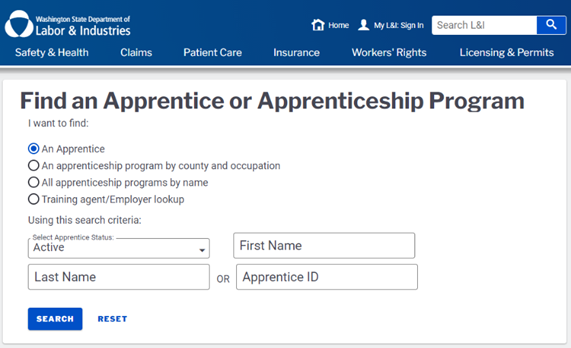
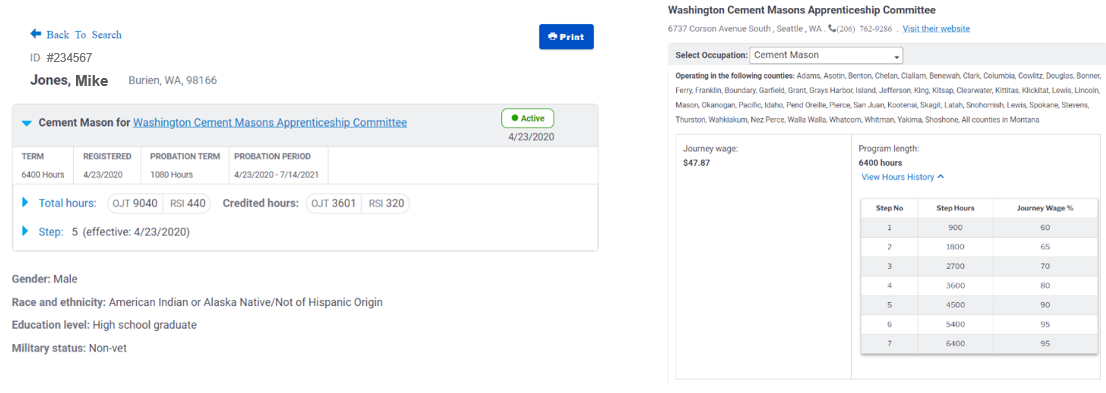
By searching a specific employee by name, you can locate much of the Apprentice information needed.
Searching for a specific program, will give details on the possible occupations, step levels and hours within the program.
By searching the “Washington Cement Masons Apprenticeship Committee” listed in the employee profile on the left, you will get the following information shown on the right.
Project Set Up
To create a new project, click on Add New Project under the Projects tab and Projects subtab. You may also click Edit next to an existing project to update information needed for WA State L&I.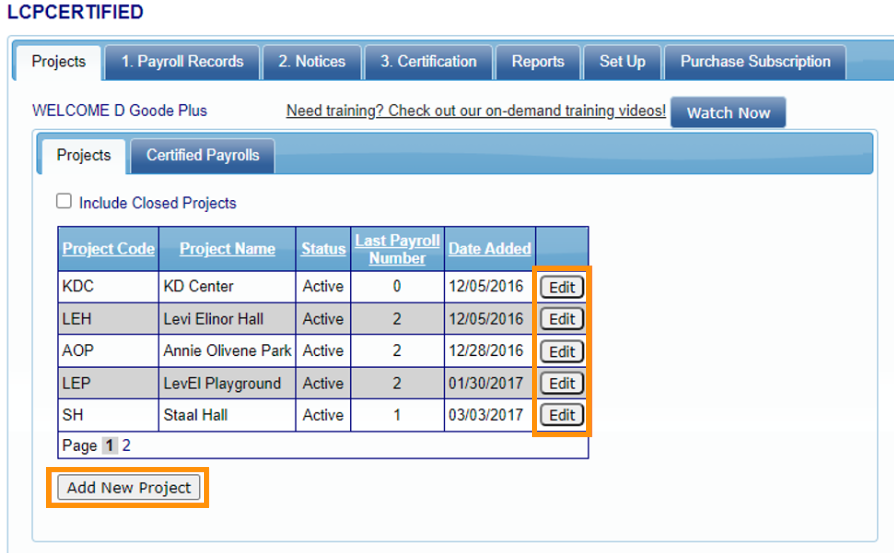
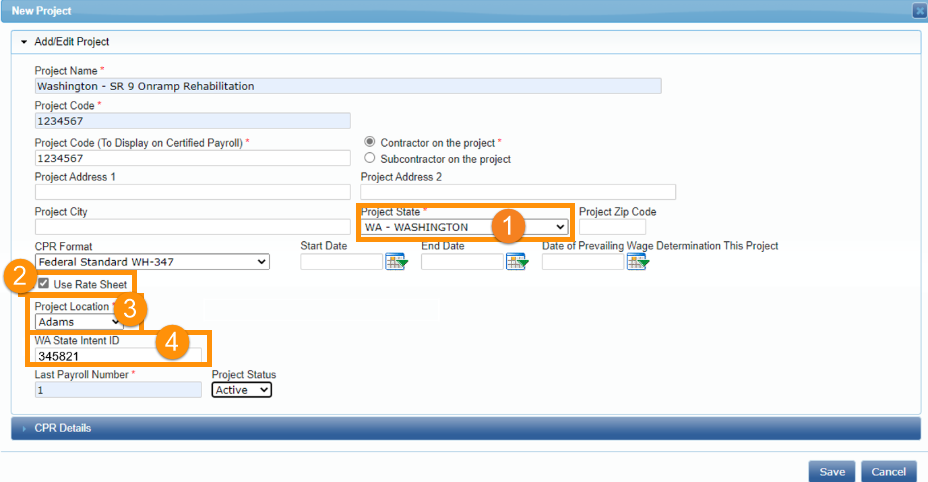
The fields illustrated below denote those that are either required to save a project in LCPcertified, or is needed when submitting the XML files to WA State L&I.
It is important to enter the following information:
- Select ‘WA – Washington’ for Project State.
- Check the box for ‘Use Rate Sheet’ and add a Rate Sheet (directions to setting up a rate sheet can be found in Step 1 of this guide).
- Select the Project Location (County of work in WA State).
- The WA State Intent ID – This identifier is extremely important in the XML file upload process.
Payroll Entry & Certification
The three main steps in entering and certifying CPRs in LCPcertified are completed by following the numbered tabs.
- ‘Payroll Records' Tab - Manually enter or upload payroll records.
- ‘Notices’ Tab – Check to see if LCPcertified flagged any possible errors on your payrolls.
- ‘Certification’ Tab – Complete the certification process and to generate the XML files.

To begin entering payroll, navigate to the ‘Payroll Records’ tab and click on ‘Enter Records’ if you are manually entering payroll, or ‘Upload Records’ if you will be using some form of upload.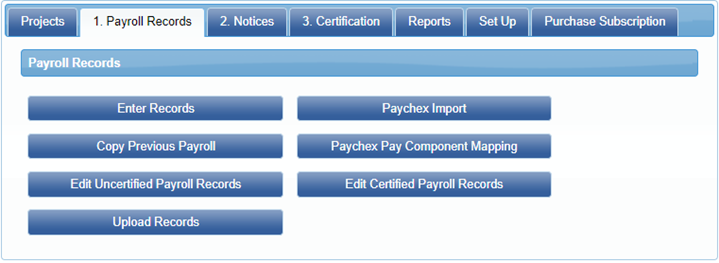
Generating the XML File
To generate the XML file that will be uploaded to the PWIA portal, navigate to:
- Certifications Tab.
- Export Certified Payroll Report.
- User filters to pull up selected project and week-end date.
- Select ‘WA L&I XML Export’ under Export Type.
- Click ‘Export’ next to the selected project and week-end date.
- The system will generate and download an XML file.
- Save this file to your computer or other storage receptacle.
- Once saved, navigate and log in the WA State PWIA portal and upload the file as directed.
LCPcertified Plus XML file access.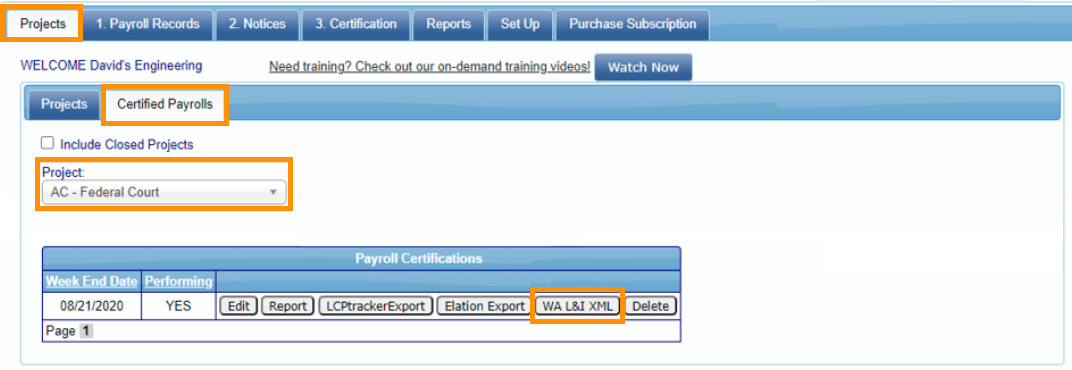
LCPcertified Professional XML file access.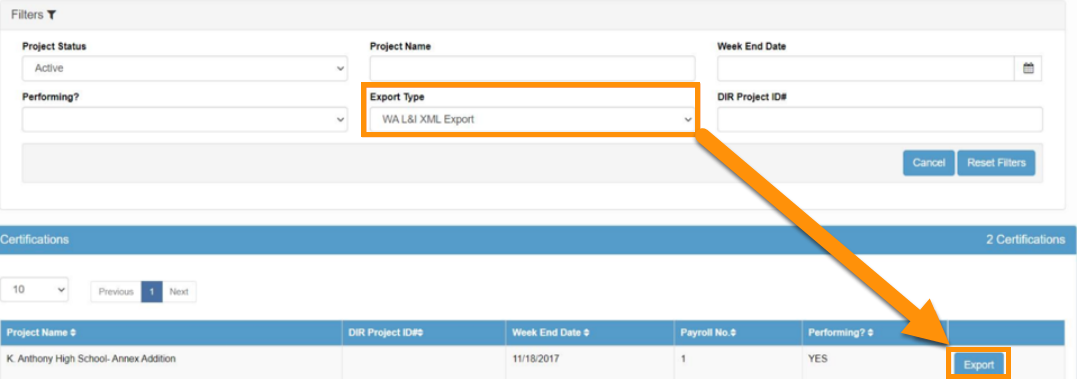
Any questions on submitting the XML file once logged into the PWIA portal should be directed to WA L&I.
Verifying XML Data
LCPcertified recommends reviewing the data contained in the XML file periodically, but especially in the first files generated from the system.
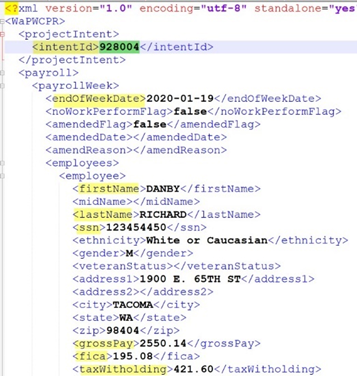
While the XML schema may be difficult to read, referring to the “XML Schema” section in this guide will be extremely useful in understanding how the LCPcertified data is pulled into each XML row.
Below is an example of a portion of an XML file. Highlighted are some key items to help demonstrate how to read an XML file:
Support
For more detailed directions on entering and certifying payroll in LCPcertified, please go to the Knowledge Base button on the top of each screen. Here you will find training documents and videos to assist you further.
Should you need additional assistance on items within LCPcertified, please contact our LCPcertified support team through one of the following options:
- Email: support@lcptracker.com
- Phone: (714)669-0052 Option 4.
- Live Chat: Click on the “Live Chat” button at the top of each screen to begin a chat.
Should you have questions, comments on the XML information collected or how to upload the file into the WA State PWIA portal, please contact WA L&I.
Please Note:
- This is intended as general information only and does not carry the force of legal opinion.
- Please consult your own legal and accounting advisors with any relevant questions.
- LCPtracker makes no express or implied guarantees.
- The Federal Register, the relevant State rules, and the Code of Federal Regulations remain the official source for regulatory information.
Was this article helpful?
That’s Great!
Thank you for your feedback
Sorry! We couldn't be helpful
Thank you for your feedback
Feedback sent
We appreciate your effort and will try to fix the article