Once a payment has been issued by the Agency or Prime vendor, you will receive an email notification to verify the amount and payment date received.
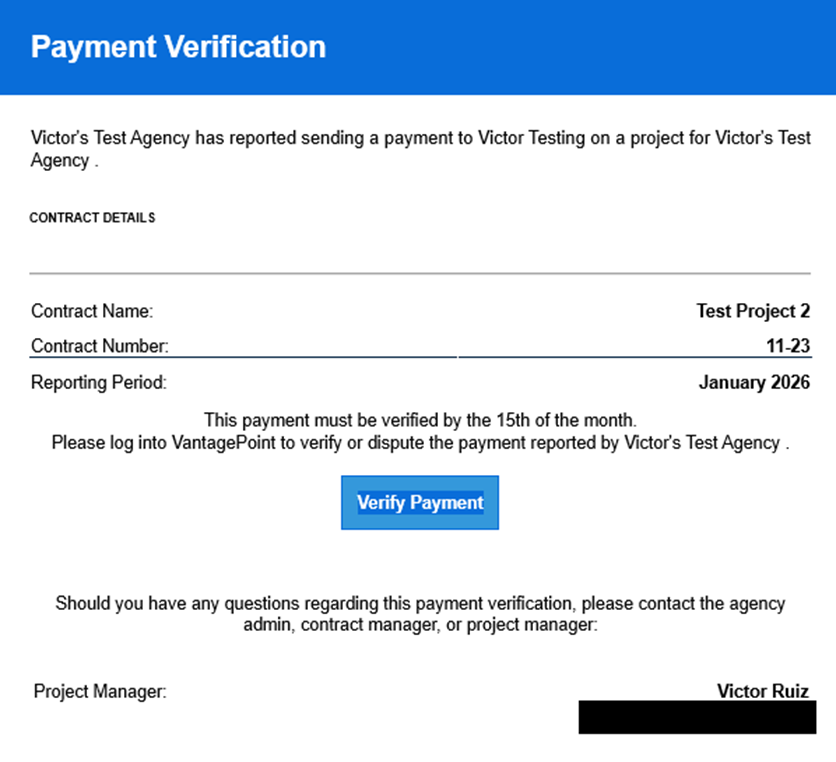
After clicking the Verify Payment button, you will be brought to the next screen to verify the amount that you received, along with the payment date received and any notes you would like to add.
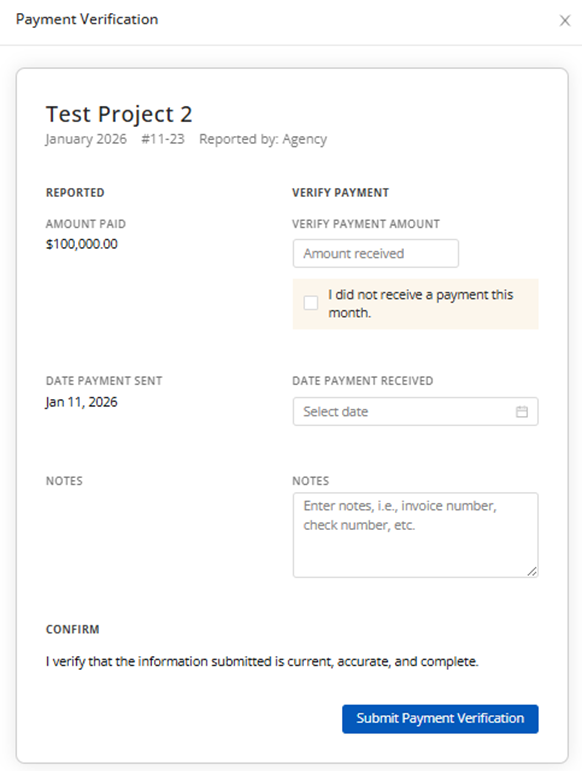
Please note that if you enter an amount less than the amount reported, the system will automatically open a dispute case.
After verifying the payment, the Agency will be able to see that you have verified on your end.
Was this article helpful?
That’s Great!
Thank you for your feedback
Sorry! We couldn't be helpful
Thank you for your feedback
Feedback sent
We appreciate your effort and will try to fix the article