New to passkeys? Don’t worry—it’s simpler than it sounds.
You don’t need technical knowledge to use a passkey. Passkeys are designed to make signing in both easier and safer by letting you approve access on a device you already have, like your phone or security key.
What Is a Passkey?
A passkey is an easier and safer way to sign in. Instead of typing a password or one time code, you approve the sign in using your phone, computer, or a physical security key.
A passkey replaces your password with a secure cryptographic key that is stored on your device or hardware key. This approach is also known as passwordless authentication.
The Importance of Passkey Security
A passkey cannot be phished, guessed, or reused.
Traditional passwords and one-time codes can be stolen or tricked out of people. A passkey helps protect you because it only works when you approve the sign-in on a device you already own, like your phone or security key. Using passkeys allows FedRAMP-level security authentication, helping protect both your account and sensitive data.
This means:
- No one can guess your password.
- Fake emails and scam websites are much harder to use against you.
- Even if someone knows your username, they still cannot sign in without your device.
Before You Start
You must already have an LCPtracker login created and need to be signed in securely.
Once you are in your account, your passkeys can then be set up from your User Portal profile.
If you do not see the option to create a passkey, it may be that the option has not been turned on for your LCPtracker account. This functionality is available through a phased roll-out by organization.
You may contact LCPtracker Support for more information.
If you are new to LCPtracker, you will first need to have an LCPtracker account created by your project Administrator or Prime Contractor. Once you have gone through the basic set up process, you will be able to add a passkey.
Setting Up Passkey
Supported Devices:
Apple Devices
- Mac (macOS Ventura 13+): Touch ID or device password; passkeys can be stored in iCloud Keychain or supported password managers.
- iPhone / iPad (iOS/iPadOS 16+): Face ID, Touch ID, or passcode; passkeys can be stored in iCloud Keychain or supported password managers.
Windows Devices
- Windows 10 (1903+) or Windows 11: Windows Hello PIN, fingerprint, or face; passkeys can be stored in Windows Hello or supported password managers.
Android Devices
- Android 13+: Screen lock (PIN, fingerprint, or face); passkeys can be stored in Google Password Manager or compatible password managers
FIDO2 Security Keys (Hardware Keys)
- YubiKey and other FIDO2 certified keys: Works with USB A, USB C, or NFC depending on your device.
Optional: Password Managers (All Platforms)
- Third party password managers that support passkeys, such as:
- 1Password
- Dashlane
- Keeper
- Bitwarden
**View the Minimum System Requirements section at the end of this document.**
For a full list of all supported security keys, please refer to Microsoft’s full list of eligible items.
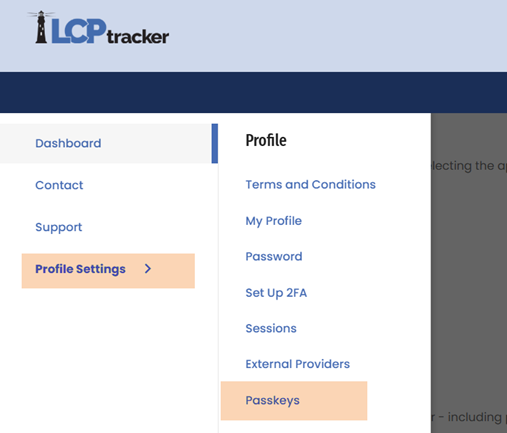
Step 1: Go to Your Profile
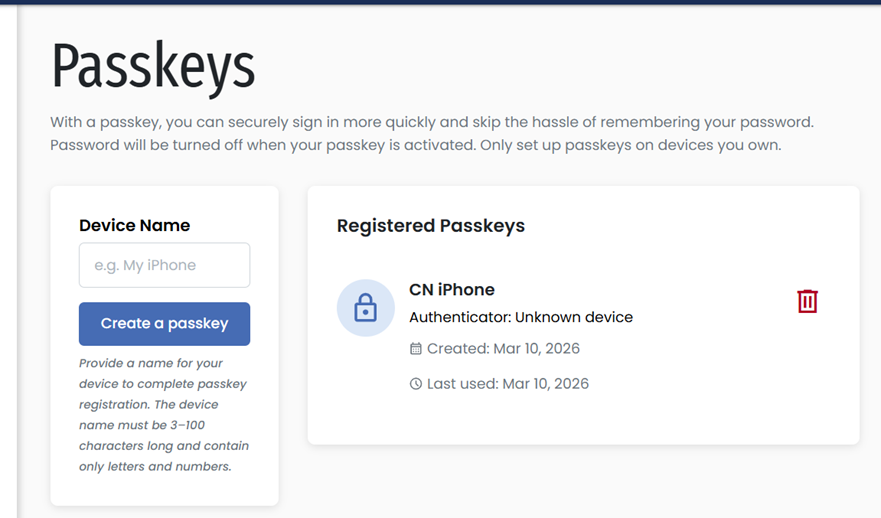
Sign in normally and on your navigation menu on the left, go to Profile Settings>Passkeys.
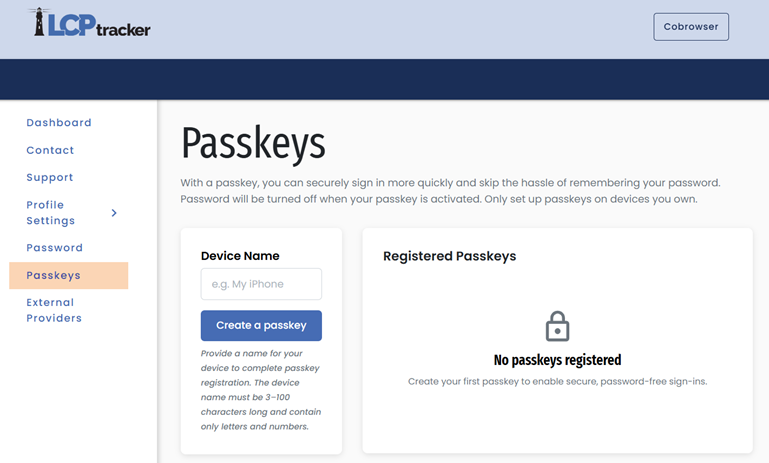
Step 2: Create a Passkey & Name Your Device
First, give your passkey a name, something easy for you to remember what device it is related to.
The device name can be 3-100 characters in length and can only contain letters and numbers, no special characters are allowed.
You are allowed to create more than one passkey per user.
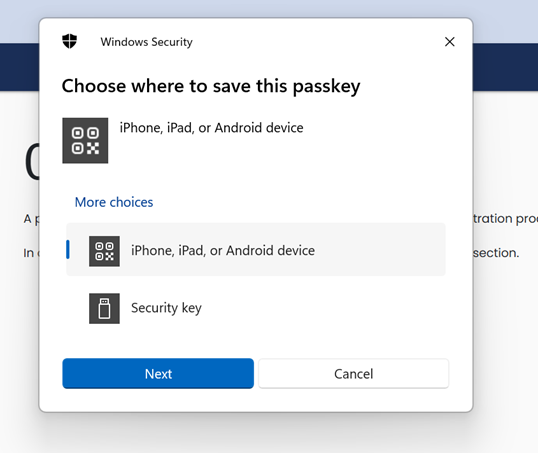
Step 3: Approve Your Device
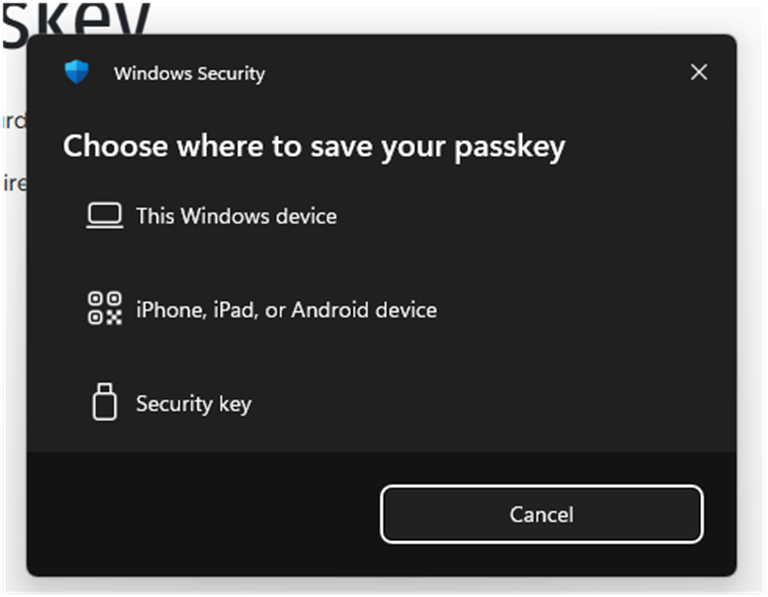
After entering the device name and selecting Create a Passkey, a window will appear to ask if you would like to create a passkey. The most common two options are:
- Saving a passkey on an iPhone, iPad, or Android device.
- Using a security key.
*Please note: there are many additional options that may be visible in the window in the below screenshot. Please see the Additional Visual Examples section below.*
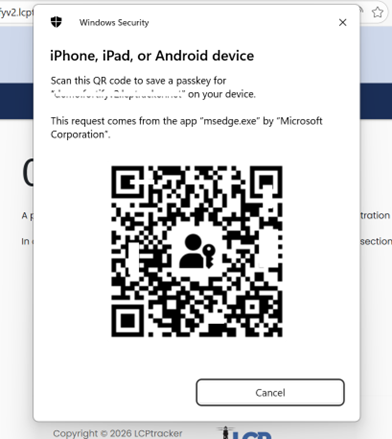
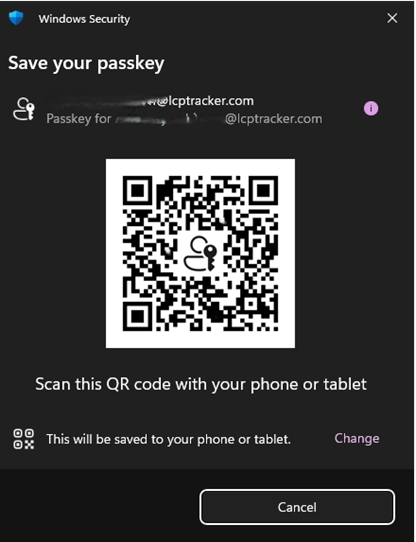
If using a phone or other mobile device, scan the QR code with your device camera and approve it. Your phone or other device will ask for you to approve remembering the passkey to complete the process.
Tip: Keep your mouse away from the QR Code.
If using a security key, plug it in and touch it when asked.
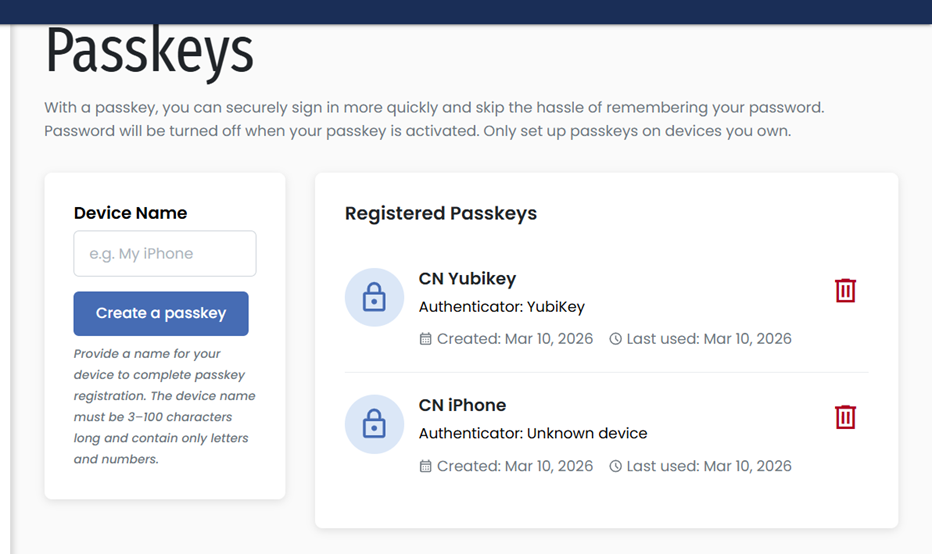
After your passkey setup has been completed, you will see it appear on your Registered Passkey list.
You can remove these at any time by clicking on the red trashcan icon. If you remove the passkey from 'User Portal', you will separately need to remove it from your device (phone, authenticator app, computer, etc)
Additional Visual Examples
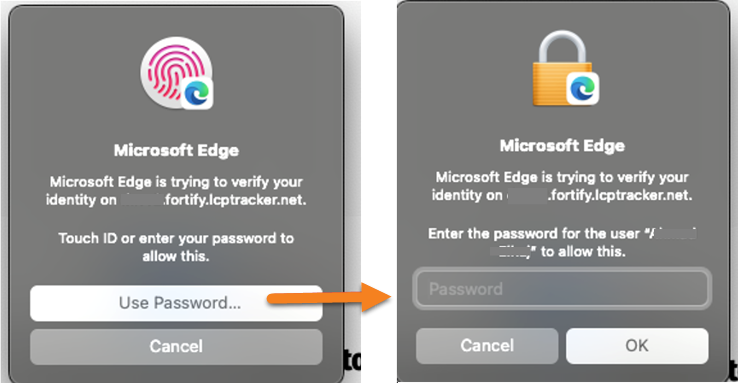
Microsoft Edge
Windows 11
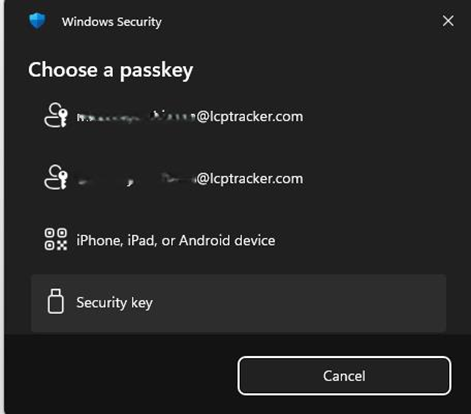
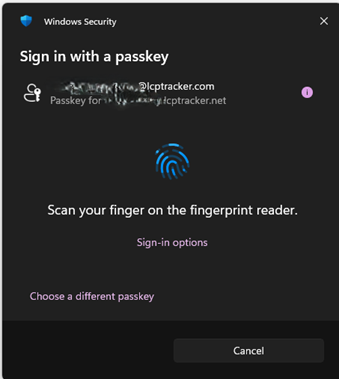
Windows 11 Hello with Thumb Print
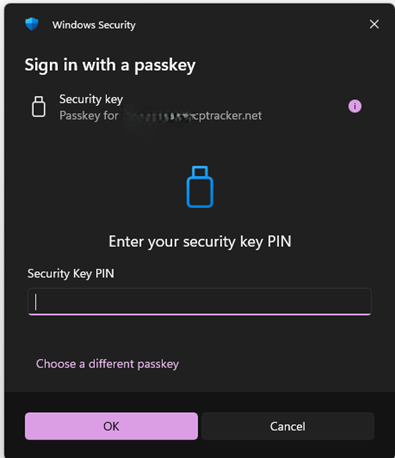
YUBI KEY with PIN or Windows Hello using PIN
Phone with QR Code
Tip: Keep your mouse away from the QR Code.
Setting Up Multiple Passkeys
Each user can set up a maximum of ten (10) passkeys.
How to Sign In Next Time
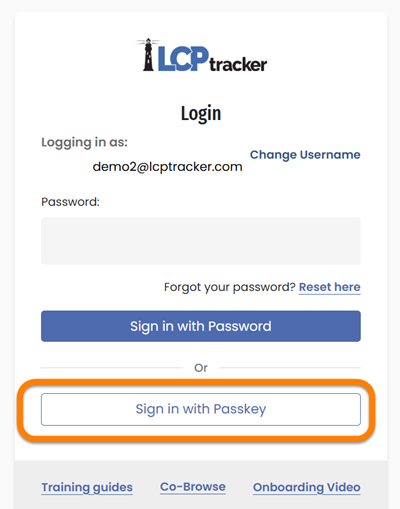
Enter your username, do not enter your password and choose Sign in with Passkey.
You select your passkey device name and then go to your device to approve the log in.
Troubleshooting
I do not see ‘Sign in with passkey’
- Make sure you already set up a passkey in your profile.
- Make sure you typed your username first.
- If it still does not appear, your organization may not have it turned on.
The screen shows a QR code and I am not sure what to do
- This QR code is meant for your phone.
- Open your phone camera and point it at the QR code.
- Follow the instructions on your phone.
- Important Note: If using iPhone/Android, verify Bluetooth is on for QR code set up.
I changed my mind or clicked the wrong thing
- You can safely cancel and try again.
- Nothing is broken if you stop and restart the process.
I lost my phone or security key
- Sign in using another available method.
- Remove the lost passkey from your profile.
- Set up a new passkey on your new device.
It worked before, but not today
- Try again and follow the steps closely.
- Make sure you are using the same device or browser profile where you originally saved the passkey.
- Restart your browser or device if things seem stuck.
- If the passkey was stored in a password manager (1Password, Dashlane, Keeper, Bitwarden), make sure it is logged in and unlocked.
My device doesn’t have Touch ID / Face ID — can I still use a passkey?
Yes.
Most devices (Windows, Mac, iPhone, Android) allow sign in with:
- Touch ID or Face ID, OR;
- A device password/PIN/screen lock.
If your device doesn’t have biometrics, your passkey will still work — you will simply be asked for your device password or PIN instead.
My passkey isn’t showing up — is my device too old?
Most modern devices work, but if passkeys still aren’t appearing:
- Check that your device has a screen lock (PIN, password, Touch ID, Face ID).
- Some older computers may not support local passkey storage.
- You can use a security key (YubiKey) instead as a backup.
- Or you can store your passkey in a password manager app that supports passkeys.
If you're unsure whether your device meets the requirements, you may need assistance from your IT department.
My organization blocks passkeys or FIDO2 — what do I do?
Some companies or agencies restrict certain authentication options.
If you keep running into issues like:
- “Passkeys not allowed”.
- “Security key blocked”.
- No passkey options appearing even after setup.
Then please contact your organization’s IT staff, as they may need to:
- enable passkeys,
- enable FIDO2 authentication, or
- allow your browser/device to create them.
My passkey is stored in a password manager — but it’s not working
If you use 1Password, Dashlane, Keeper, Bitwarden, or another password manager:
- Make sure the app is installed on the device.
- Make sure you are signed in to the app.
- Make sure the password manager is unlocked (it may require your master password or device biometric).
- Make sure it supports passkeys on your version of the operating system.
I keep seeing “Bluetooth required” — why?
Bluetooth is needed when:
- Setting up a passkey that uses your phone.
- Using a passkey stored on your phone while signing in on your computer.
Make sure Bluetooth is turned on:
- On your phone.
- And on your computer.
If Bluetooth is restricted by your agency, contact IT.
My Windows computer says I need Windows Hello — what does that mean?
Windows Hello is required for passkeys, but it does not require biometrics.
You can use:
- a simple Windows Hello PIN, or;
- fingerprint, or;
- face recognition.
If Windows Hello is blocked or cannot be set up, your IT department may need to enable it.
I’m on a Mac and it keeps asking me to approve on my iPhone
This usually means:
- your Mac does not have Touch ID, OR;
- iCloud Keychain is turned off.
Solution:
- Turn on iCloud Keychain in Settings, OR;
- Use a password manager that supports passkeys, OR;
- Use a security key (YubiKey).
I am still stuck — what should I do?
If you have tried the steps above and still cannot create or use a passkey:
- Your device, browser, or organization settings may need a small adjustment.
- Please contact your company or agency’s IT support team and share the issue you’re seeing.
- They may need to enable passkeys, update your settings, or confirm device compatibility.
- Contact LCPtracker Support Team.
Minimum System Requirements
Passkeys (FIDO2/WebAuthn) work on most modern devices that support secure authentication hardware (Windows Hello, Touch ID, Platform Authenticator, or security keys like YubiKey).
To ensure users can create and use a passkey, their device must meet the minimum requirements listed below.
Windows
Windows supports passkeys on Windows 10 (version 1903+) and Windows 11. Passkeys can be stored using Windows Hello or using a compatible third party password manager.
Requirements:
- OS: Windows 10 (1903+) or Windows 11
- Authentication: Windows Hello using a PIN, fingerprint, or face.
- Storage Options:
- Windows Hello (built in storage), or;
- A third-party password manager that supports passkeys (e.g., 1Password, Dashlane, Keeper, Bitwarden, etc.)
- Browser: Edge, Chrome, or Firefox.
- Hardware: TPM 2.0 is recommended for Windows Hello storage, but not required when using a third-party passkey manager.
macOS (Mac & MacBook)
Passkeys work on Macs running macOS Ventura (13.0) or later. Macs can use either the built in Apple passkey system (iCloud Keychain) or a compatible third-party password manager.
Requirements:
- OS: macOS Ventura 13.0 or later.
- Authentication: Touch ID or your Mac’s device password.
- Storage Options:
- iCloud Keychain (for Apple’s built in passkey syncing), or;
- A supported password manager such as 1Password, Dashlane, Keeper, Bitwarden, etc.
- Macs without Touch ID can still use passkeys locally without needing to approve on an iPhone.
iPhone & iPad
Passkeys work on iPhones and iPads running iOS/iPadOS 16 or later. Users can store passkeys in Apple’s built in iCloud Keychain or in a supported third-party password manager.
Requirements:
- OS: iOS or iPadOS 16 or later.
- Authentication: Face ID, Touch ID, or a device passcode.
- Storage Options:
- iCloud Keychain (for Apple’s built in passkey support), or;
- A third party password manager that supports passkeys (e.g., 1Password, Dashlane, Keeper, Bitwarden, etc.)
- iCloud Keychain is not required unless users plan to use Apple’s native passkey storage and syncing.
Android
Android supports passkeys through both Google Password Manager and certain third-party password managers that support passkeys.
Requirements:
- OS: Android 13 or later recommended.
- Passkey Storage Options:
- Google Password Manager (built in), or;
- Supported password managers like 1Password, Dashlane, Keeper, Bitwarden, etc.
- Authentication: Device screen lock enabled (PIN, fingerprint, or face).
FIDO2 Security Keys (Optional)
Security keys are physical devices (like YubiKey) that let you use passkeys on many devices.
Requirements:
- Must be FIDO2 certified.
- Connect using USB A, USB C, or NFC.
- Your device must support the key’s connection type.
Was this article helpful?
That’s Great!
Thank you for your feedback
Sorry! We couldn't be helpful
Thank you for your feedback
Feedback sent
We appreciate your effort and will try to fix the article