LCPCERTIFIED DIR XML EXPORT
The California – Senate Bill (SB) 854 is the driving force behind the creation of the LCPtracker XML Export feature. The Division of Industrial Relations (DIR) has created specific specifications. As well, the DIR has its own site for uploading of required documentation, specifically the uploading of certified payroll.
We have included this link within LCPtracker that will take you directly to their site - http://www.dir.ca.gov/Public Works/PublicWorks.html
Six Major Items to remember to complete for the upload to be successful:
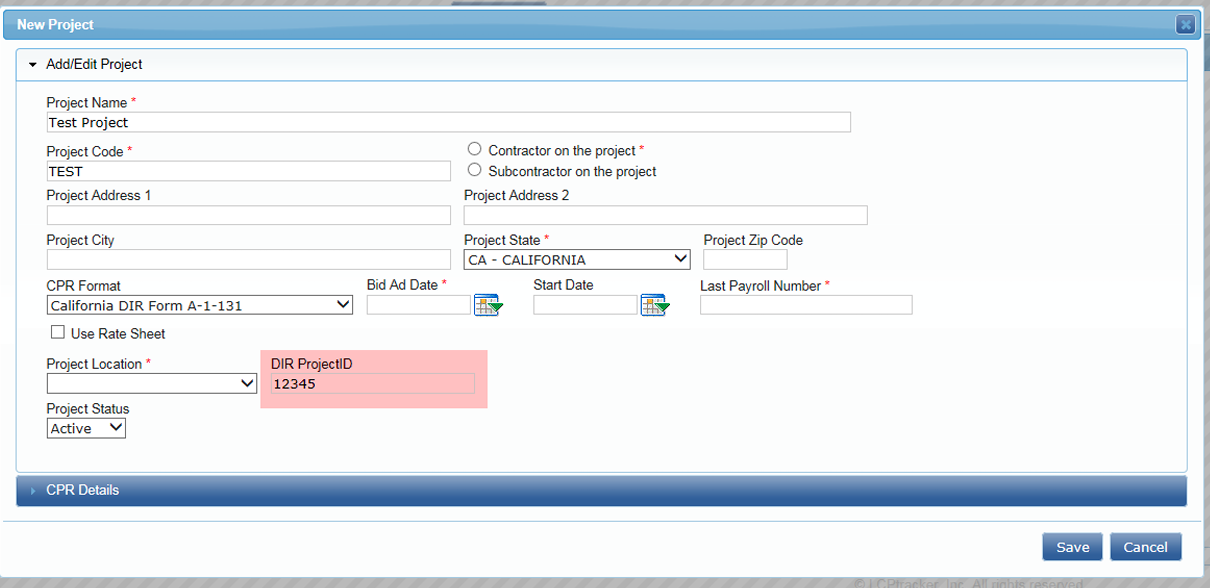
- The DIR Project ID must be entered in the Projects Screen.
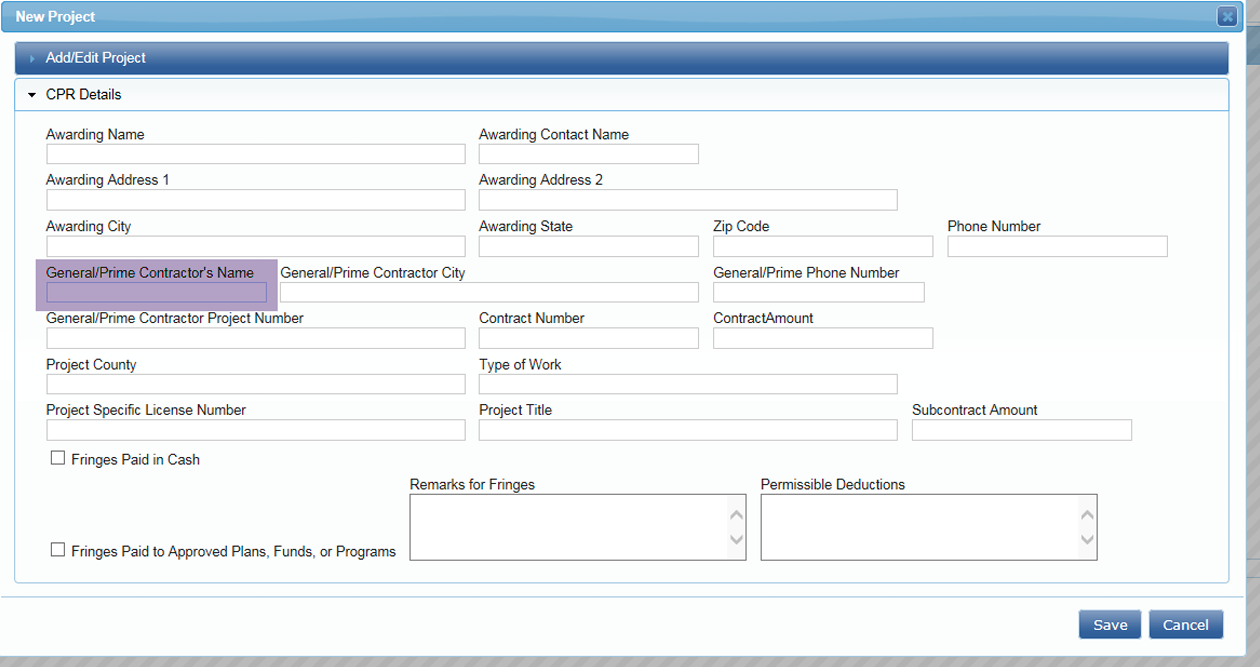
- The General/Prime Contractor’s Name must be entered in the CPR Details Screen under Projects.
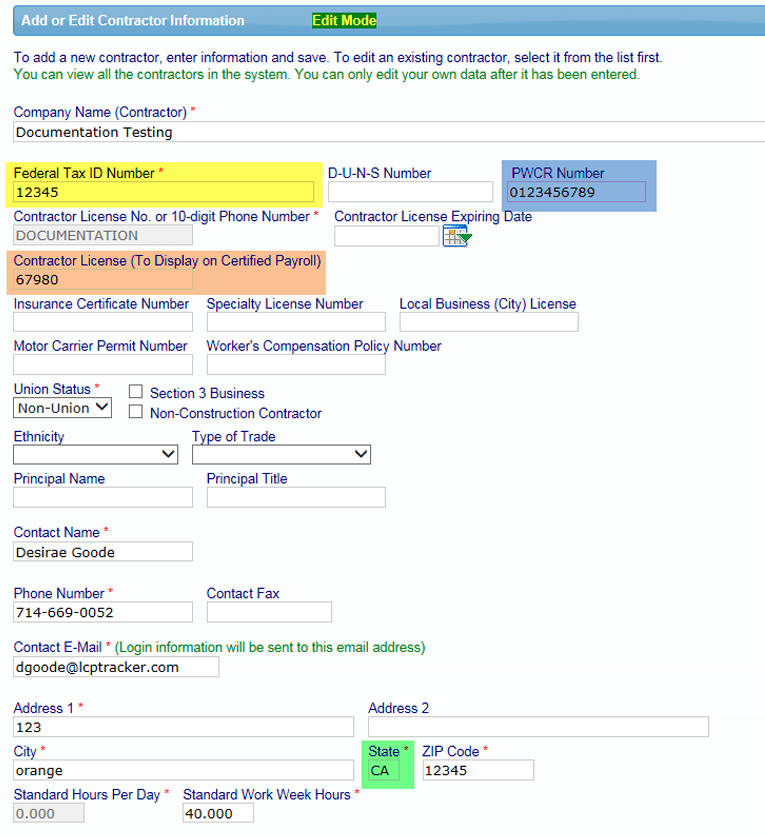
- The Contractor PWCR Number must be entered in the Set Up>Company Information screen. Contractors not yet registered, use this direct link https://www.dir.ca.gov/Public-Works/Contractor-Registration.html to get yourself registered.
- The FEIN must be entered in the Set Up>Company Information screen.
- The state abbreviation in the Set Up>Company Information screen must be uppercase (CA, not Ca).
- The Contractor License Number must be entered in the Set Up>Company Information screen.
EXPORTING CPRS IN XML FORMAT
Contractors also have the ability to export their CPRs. This option will be located under the Projects>Certified Payrolls. Click on the DIR XML button for the project and week-end-date you need to upload. 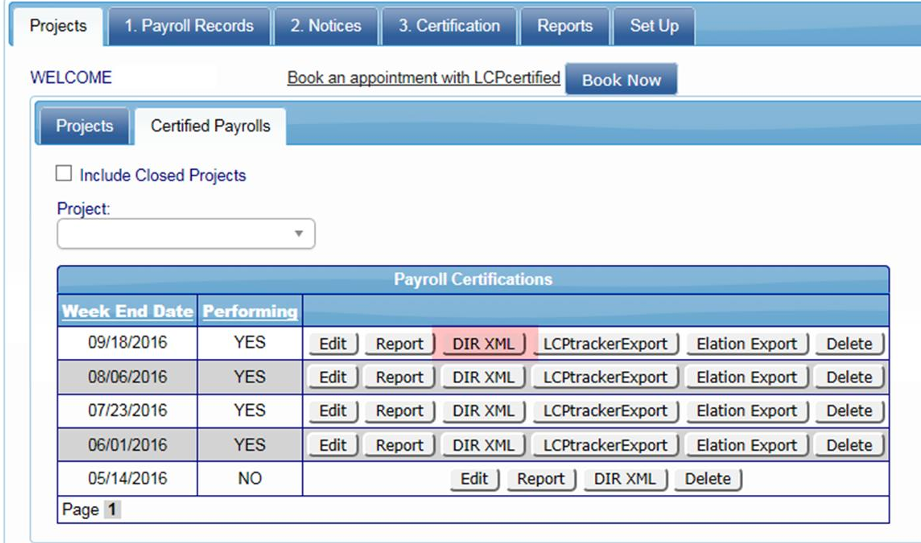
EXPORT /UPLOAD DIRECTIONS
After clicking on the DIR XML button, you will see a message at the bottom of your screen to open a file. While you may open, we suggest clicking the down arrow next to save and choose to Save as.
Decide where on your computer you will be saving. One suggestion is to create a folder that your XML Exports or DIR Uploads. When you go to upload, you will know exactly where to retrieve the file. 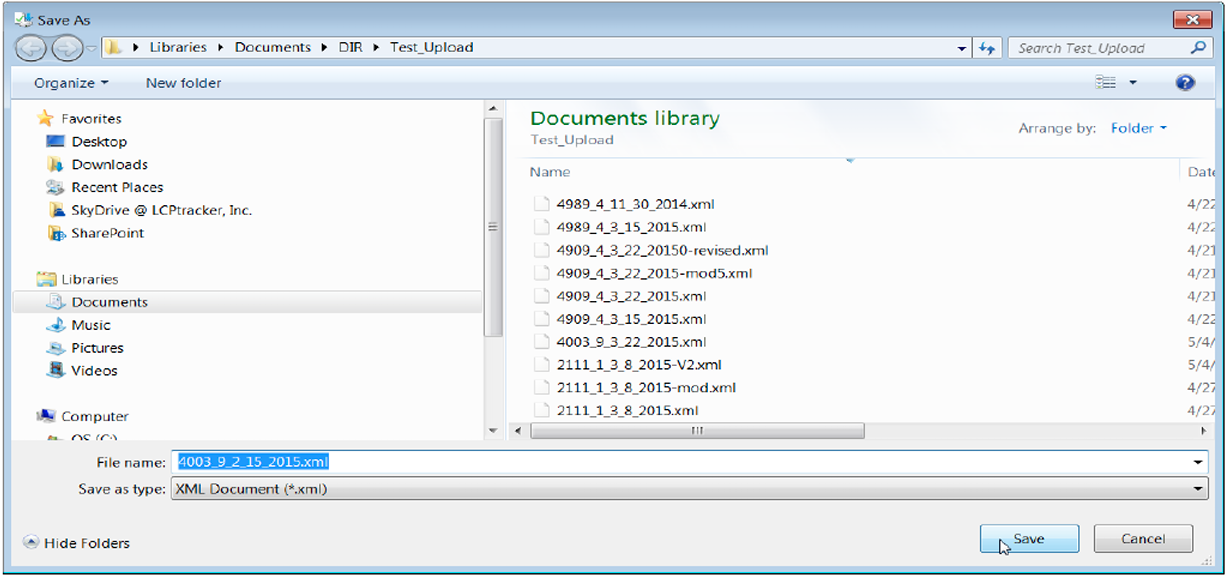
While you may choose to save and open, or wish to open before saving to view; most may choose to Save as and
proceed to the DIR website to upload. Here is an example of what the DIR XML looks like: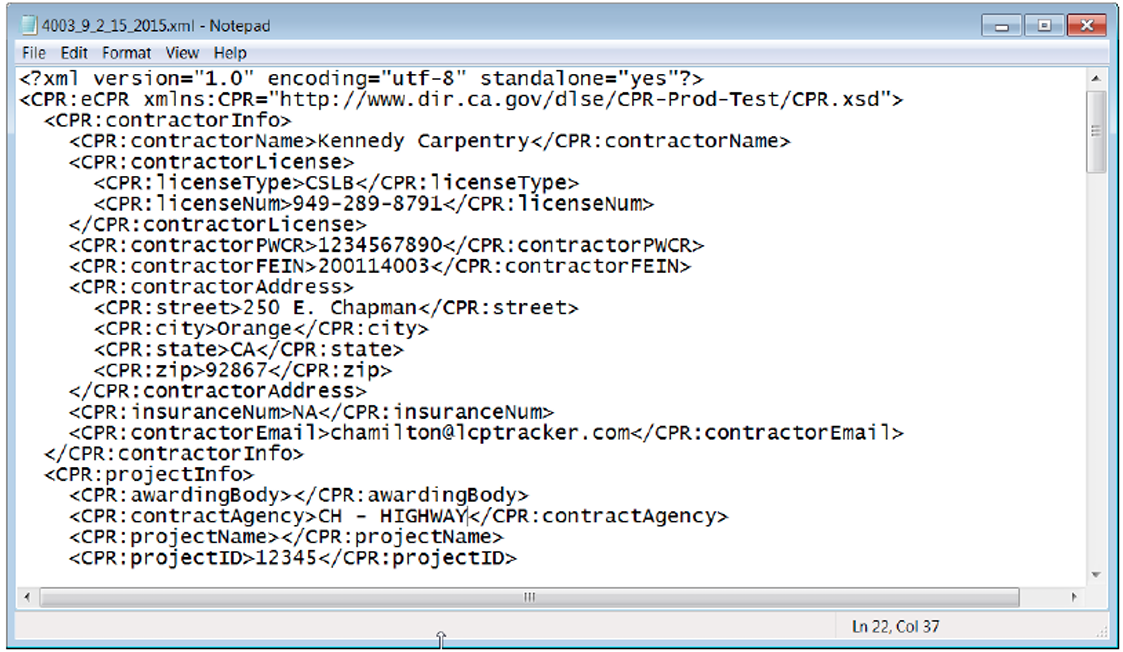
This link will take you directly to the DIR upload website - https://services.dir.ca.gov/gsp
Once there, Browse your computer and find the XML Export you Saved as out of LCPtracker.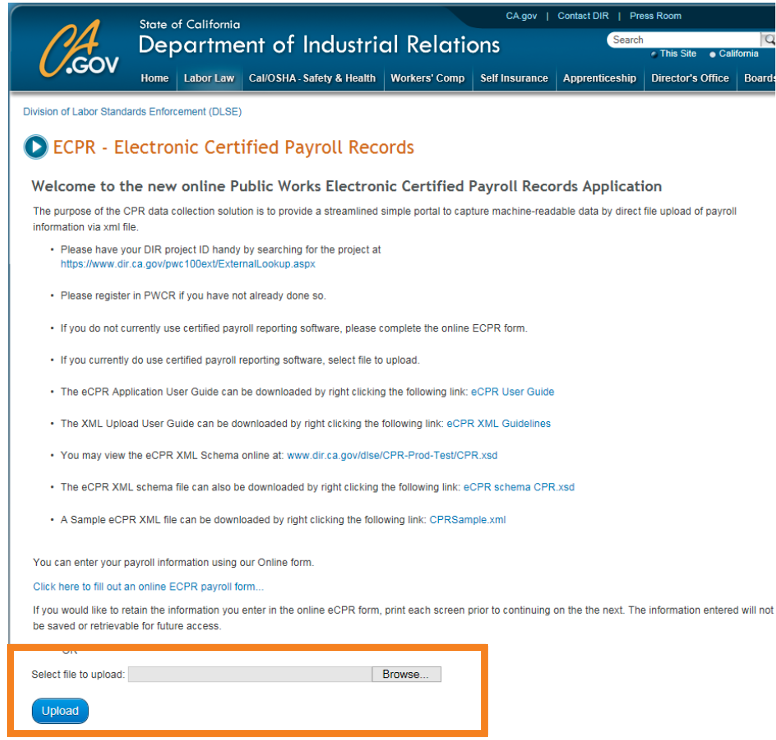
Once you have found that document, you are ready to click the Upload button.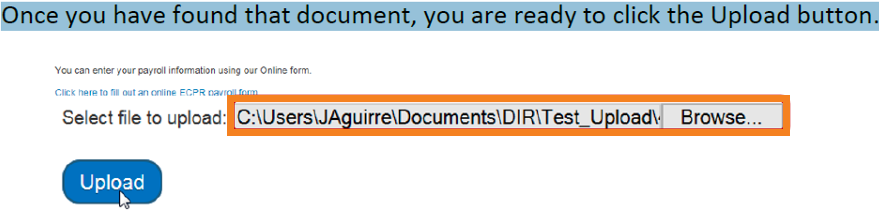
Once the DIR site shows Validation Success, you are ready to follow steps necessary to complete the process.
Click the load the xml into the OnLine eCPR form hyperlink.
The Uploaded Data now appears in the online form for your review.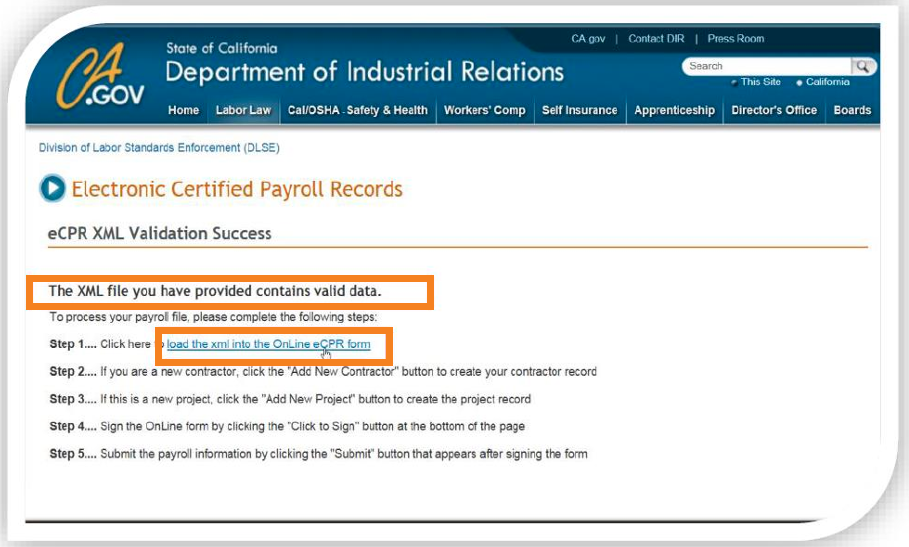
Follow steps to complete the submission.
Remember this is legal and binding and you should review all information for accuracy prior to electronically
signing and accepting to submit.
Example of DIR eCPR Online Form (SSN field blanked out on purpose). 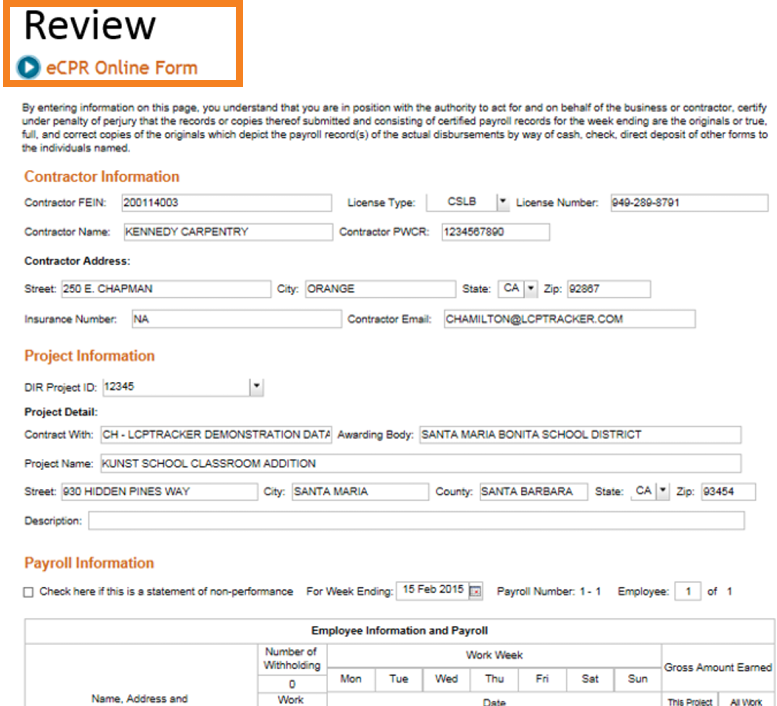
If you are a new Contractor, click the ‘Add New Contractor’ button to create your contractor record. Always check that your information is correct.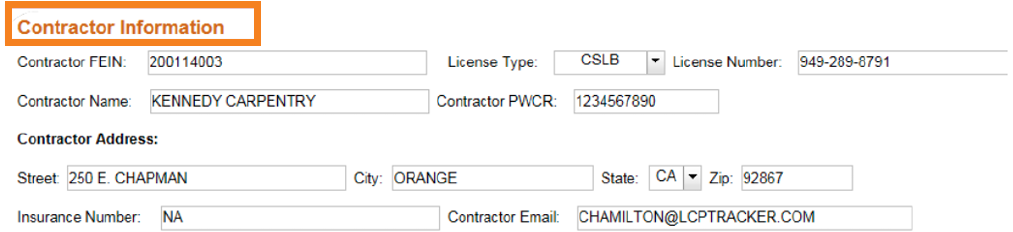
If a new project you have not yet submitted information on, click the ‘Add New Project’ button to create. Again, always check the information to be sure it is correct.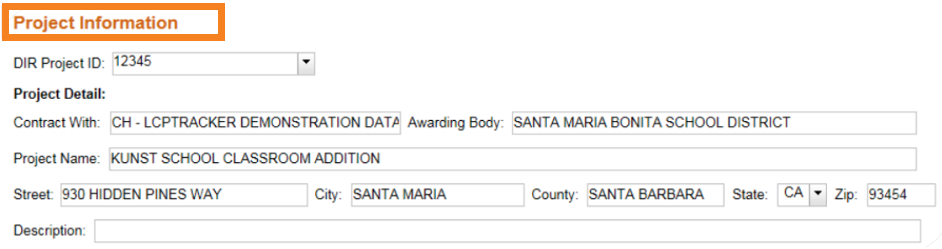
Final step, review your payroll information.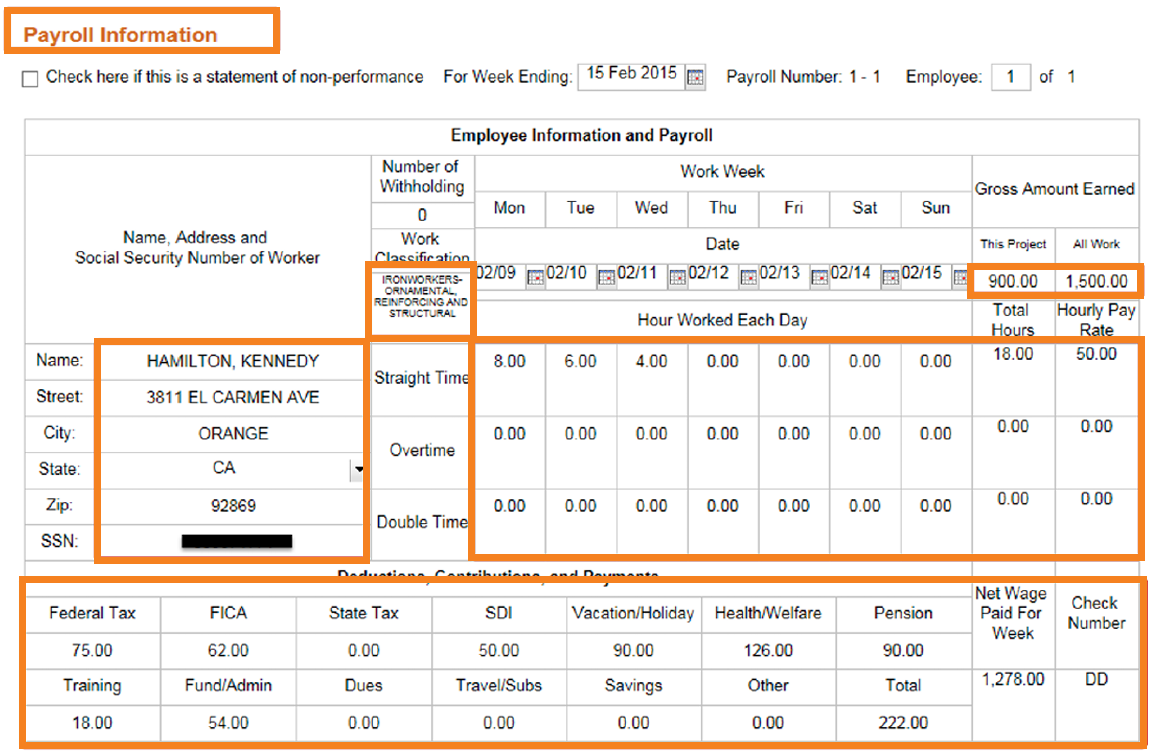
After reviewing for accuracy, you are ready to complete information. Enter your name, title (position in company) and company name. Click to Sign.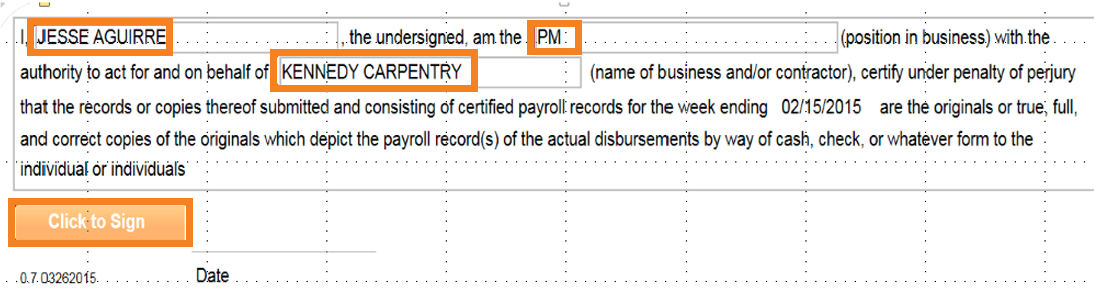
To Accept, click Accept (or Not Accept).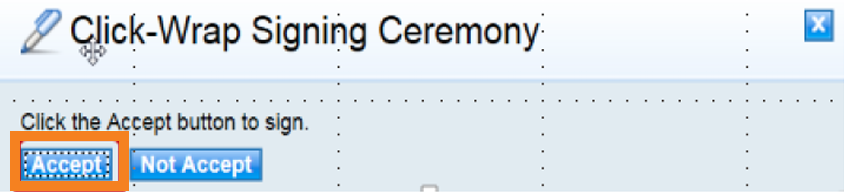
It has now accepted and now you are ready to Submit.
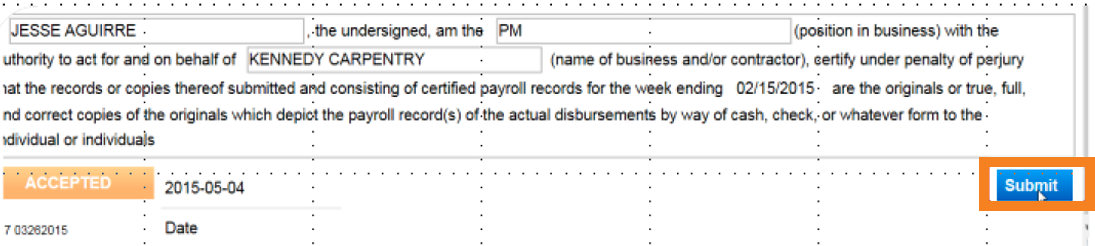
eCPR Online Form has been submitted.
Was this article helpful?
That’s Great!
Thank you for your feedback
Sorry! We couldn't be helpful
Thank you for your feedback
Feedback sent
We appreciate your effort and will try to fix the article