LCPtracker – NYSDOL XML – R74, August 24th, 2026
Administrators and Contractors can now generate the NYSDOL XML compatible file to submit certified payroll information with ease.
Contractors must set up a project on the NYSDOL system first. The following is handy information to have to be successful:
- Business’ employer identification number (FEIN) from the IRS.
- NYS contractor registration number (found on your Certificate of Contractor Registration).
- Prevailing wage case number (PRC Number) for the project.
- Copy of payment bond (for public improvement projects only).
Optional – when submitting XML files, use a consistent naming convention to organize and manage files.
- For example, TestProject_08102025.xml can be clearly identified as a file containing data for the project named Test Project and for the week ending date of 08/10/2025.
See below for account and project-level configuration required for successful file generation in LCPtracker and submission on the NYSDOL system.
Project Set Up
Administrators:
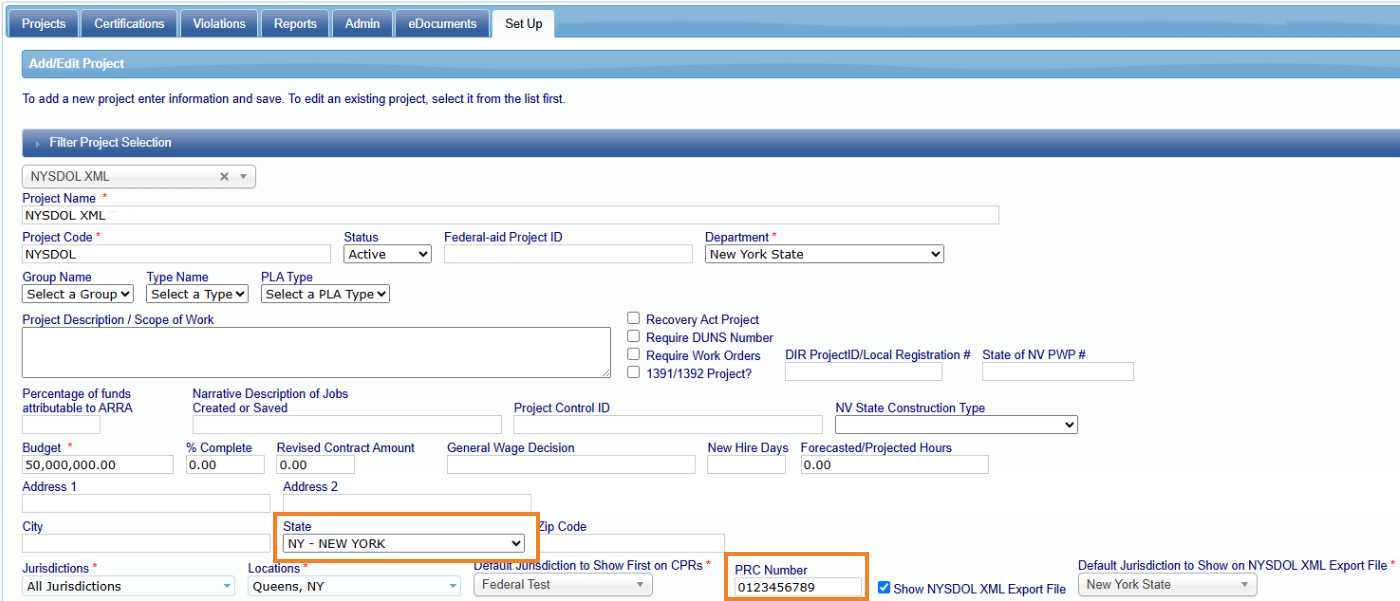
- Project state must be set to: NY – New York
- PRC Number (Prevailing Rate Case Number) must be entered
- This is a new field and unique 10-digit number assigned by the NYS Department of Labor Bureau of Public Work.
Note:
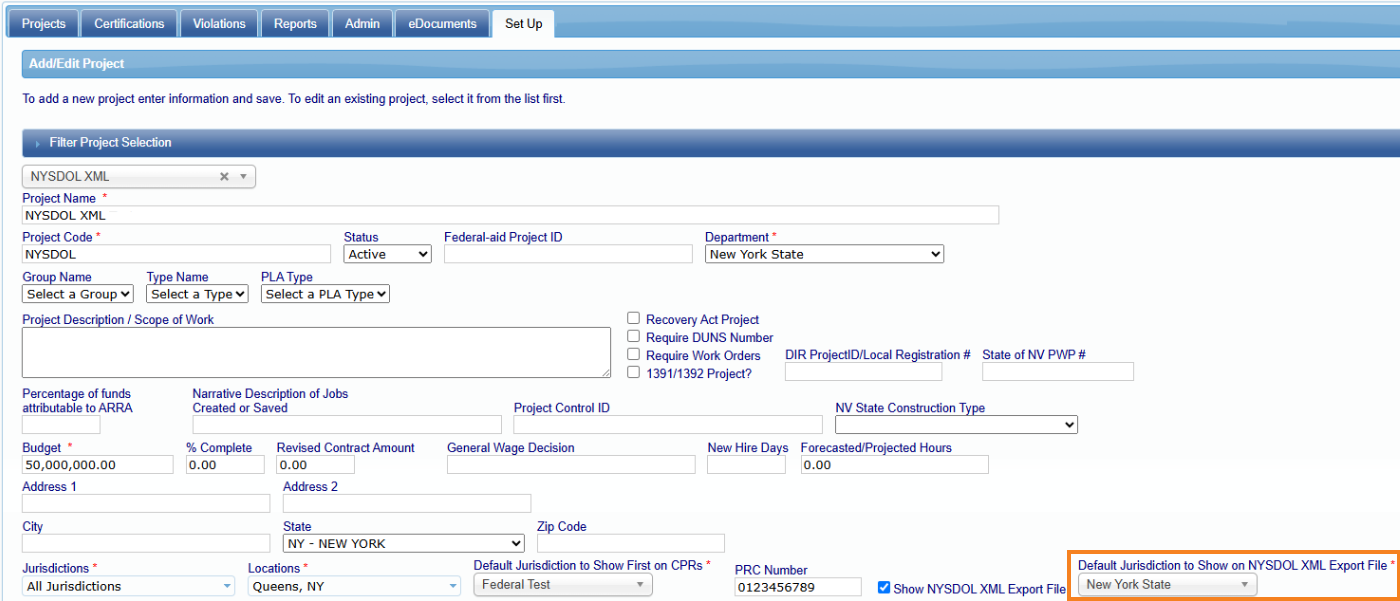
If multiple Jurisdictions are selected, then ‘state of New York jurisdiction’ must be the Default Jurisdiction to Show on NYSDOL XML Export File. This will allow for the proper Craft and Classification list to be available for selection.
Validation Settings
- Validation 21 – Checks that apprentices have been approved must be enabled.
- If payroll reported week has employees classified as Apprentice, then Contractors must enter all applicable apprentice related information under the corresponding employee profile as well as submit all pertaining documentation under eDocuments.
- This requires Administrators "Apprentice Approval" for XML files to display "True"
- If employee is not an apprentice, then XML file will display "False".

Note:
- If an employee is classified as an Apprentice and it is not approved by Admin prior to payroll submission in LCPtracker then system will display a ‘Notice’ informing the contractor said requirement must be met.

How to Create XML file
Contractors can continue to take advantage of the various options available in LCPtracker for entering payroll information.
- Manually
- Upload data using a compatible file if their internal IT team mapped the compatible upload file OR if their payroll system has an active integration with LCPtracker
- Direct Payroll Interface (DPI) service
Once on the Payroll Records page enter and review:
- Employee hourly work week data (Rate of pay, Hours worked)
- Supplemental payments (Fringes)
- Check information (Multiple checks, Deductions, etc)
Note:
State of New York craft and classifications selected in LCPtracker will be compared to the NYSDOL default craft and classification (work categories) list.
- This is to match the selection in LCPtracker with the corresponding work category in the default list provided by NYSDOL.
- The matching craft and classification (work category) will be displayed on the XML file.
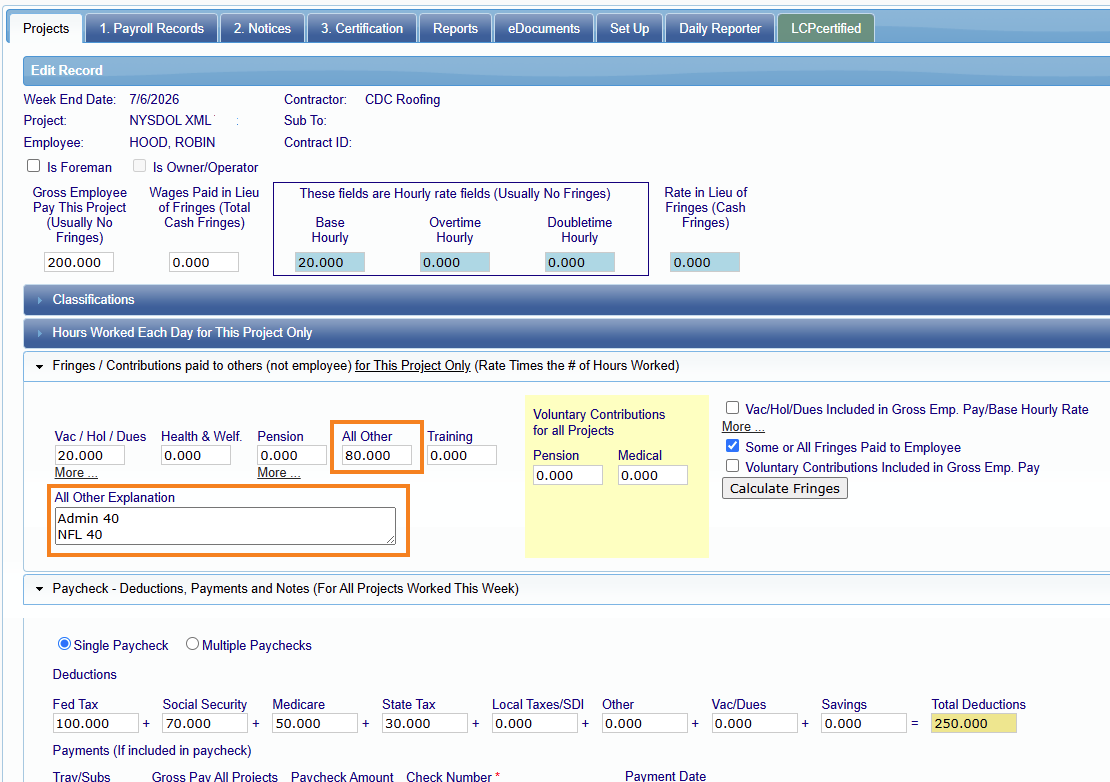
If ‘Other’ Supplemental Payment (Fringe) is reported, then “All Other Explanation” field is required.
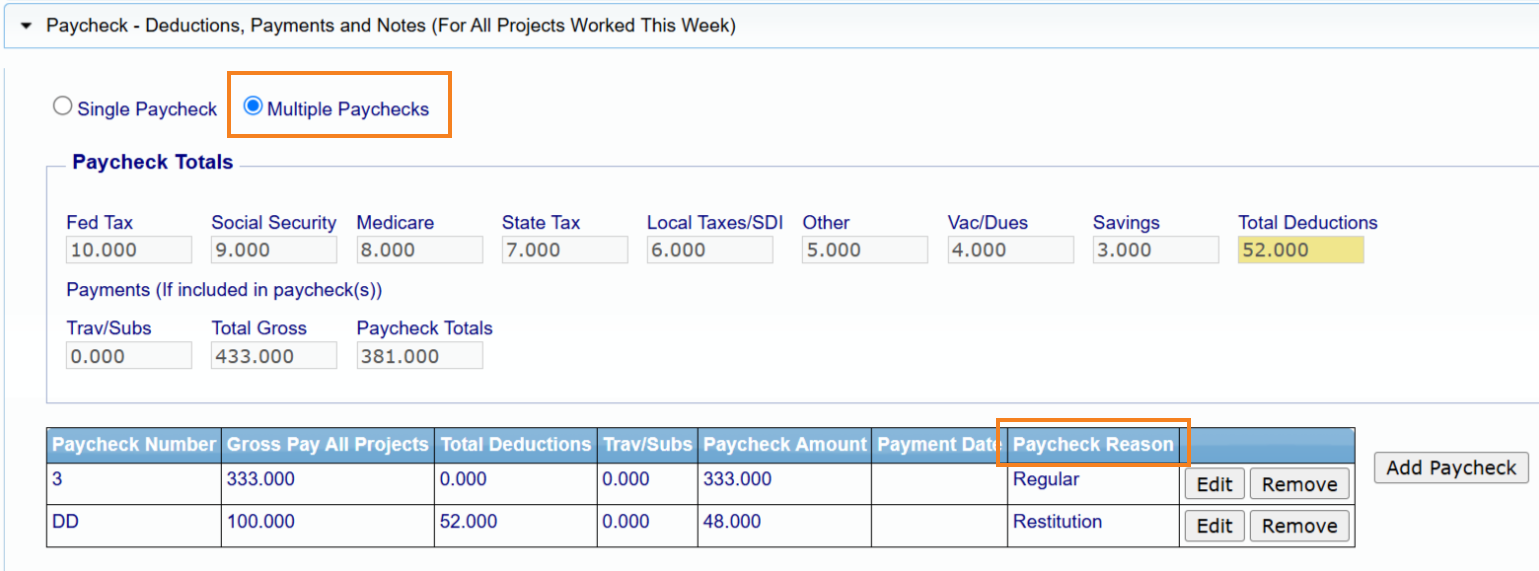
If a contractor enters multiple checks, the checks information (Deductions, Total Deductions, Gross all projects and Net) will be combined and appear as one set of values on the XML file. This is due to current NYSDOL system requirements which do not accept separate checks datasets.
Contractor users can make changes and recertify payroll data in LCPtracker (i.e. add Restitution check, update rate pay, check information, etc) and produce an up-to-date XML file. However, current NYSDOL system limitations do not allow updated XML files to be uploaded to the Payroll Portal.
- Contractors must contact the NYSDOL directly and request a "correction excel file" to make a correction for previously submitted CPRs.
- NYSDOL will provide the correction form and be responsible for attaching the corrected restituted file.
View XML file
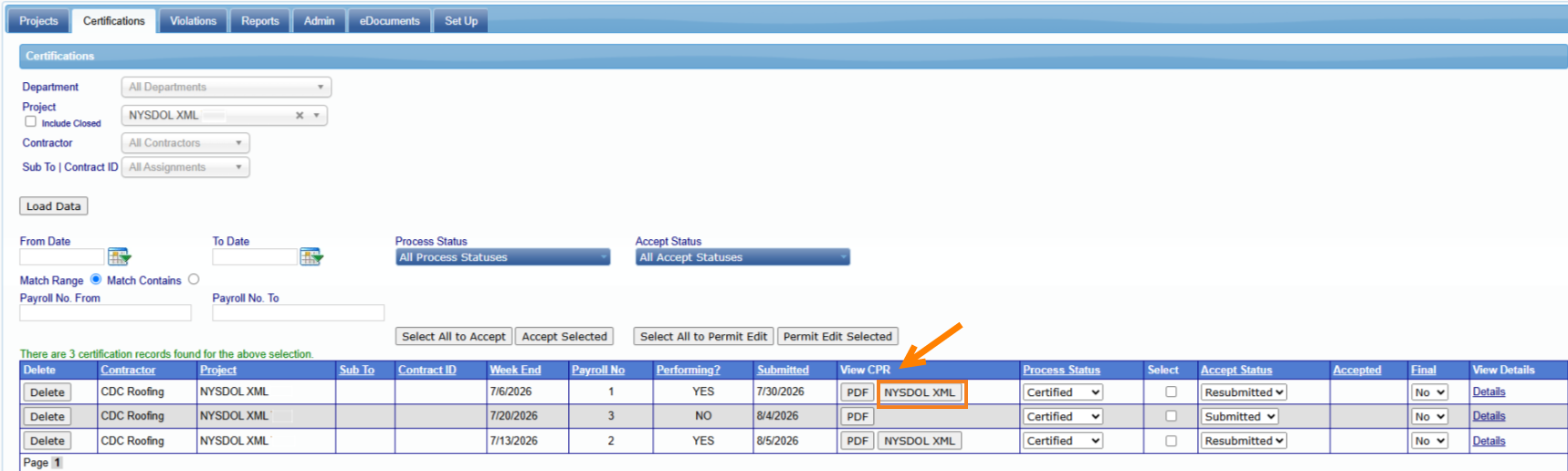
As an Administrator > once Contractors have certified the payroll go to Certifications tab and filter by your desired New York state project. You can then click on the NYSDOL XML button to view the file.
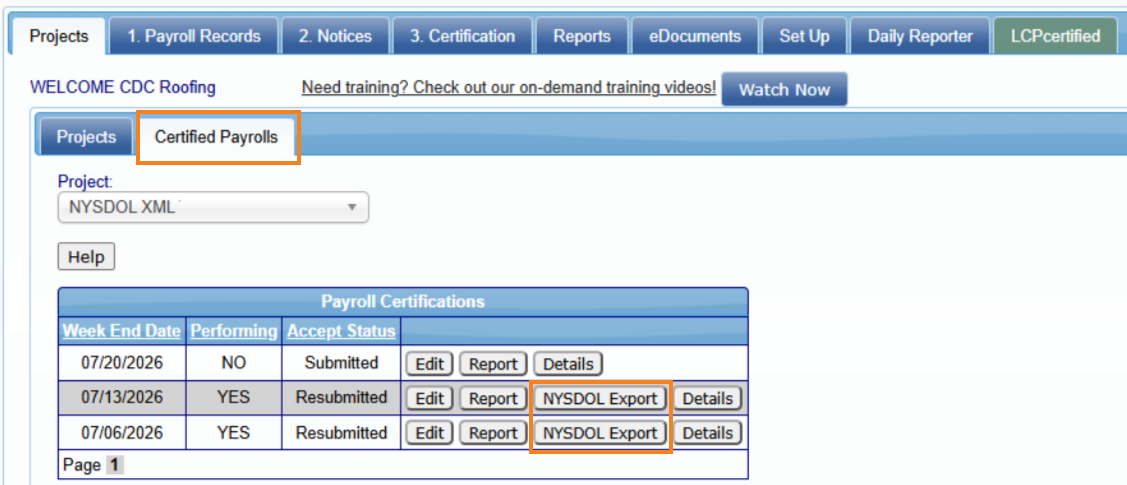
As a Contractor > go to Projects tab and Certified Payrolls subtab. Once there you can click on NYSDOL Export button to view the XML file.
Note:
XML files are not generated for non-performing weeks. Per the current NYSDOL process, contractors are required to access the NYSDOL system and manually select the 'No Work' option on the project's weekly payroll dashboard.
Frequently Asked Questions
Can I use an API instead of XML upload?
- No, an API for the Certified Payroll portal is not available at this time.
Can I upload a CSV or spreadsheet instead of XML file upload?
- No. Currently, only XML is supported. This is the most universally accepted format for this type of data and is compatible with most payroll systems.
Is there a limit to the number of records I can send in a single file?
- Yes. You can only send up to 500 employee payroll records in a single file. If the file contains more than 500 employee payroll records, you’ll receive an error that the file exceeds the maximum number of records.
Can I submit a file for multiple projects at once?
- No, you can only send payroll data for a single project per file.
Can I submit a file for multiple weeks at once?
- No, you can only submit an XML file for a single week. Submitting multiple or mismatched payroll week ending dates will cause the file to fail.
Can I upload an updated XML file after initial submission?
- No, updates to the previously submitted payroll cannot be "fixed/corrected" by uploading an updated XML file.
- Contractors must contact the NYSDOL directly and request a "correction excel file" to make a correction for previously submitted CPRs.
- NYSDOL will provide a correction form and be responsible for attaching the corrected restituted file.
Why don’t I see employee’s check number or notes added in LCPtracker?
- XML schema set by NYSDOL currently does not allow check numbers nor notes as part of the XML.
For more information on this release, please contact support@lcptracker.com
Was this article helpful?
That’s Great!
Thank you for your feedback
Sorry! We couldn't be helpful
Thank you for your feedback
Feedback sent
We appreciate your effort and will try to fix the article