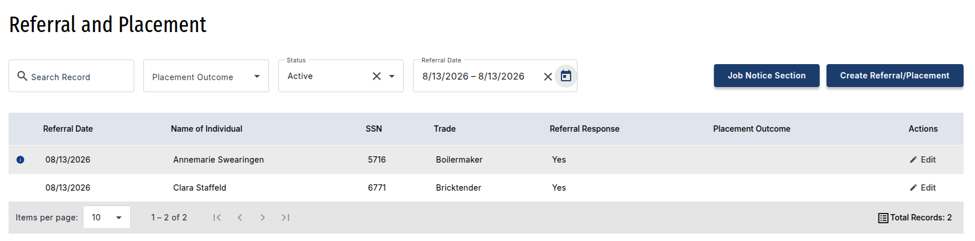
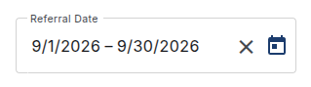
Purpose: Use the Referral Date filter to find referral and placement records created within a specific date range.
Open Referral and Placement from the left navigation menu. In the filter row above the table, locate the Referral Date field. This filter uses the referral date—not the placement date or the participant’s enrollment date. Because the results show referral records, the same participant may appear more than once.
Find Records Within a Date Range
- Select the calendar icon in the Referral Date field.
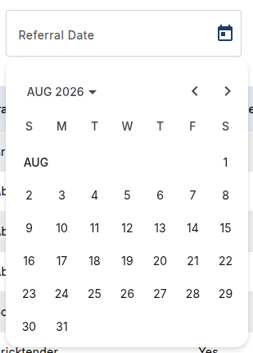
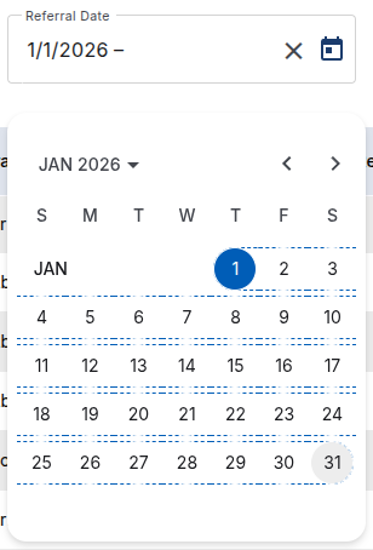
- Use the month and year menu at the top of the calendar to choose the correct month and year. You can also use the previous and next arrows.
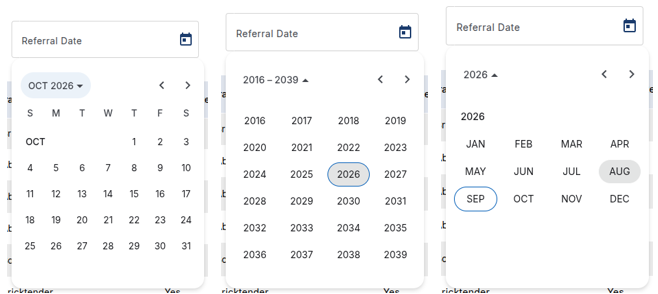
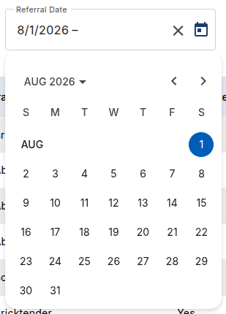
- Select the start date. The calendar stays open so you can select an end date.
- Select the end date. If the end date is in another month or year, navigate to it before selecting the day.
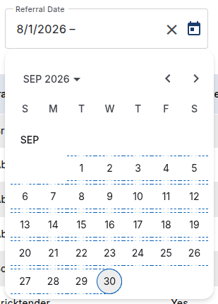
- After you select both dates, the filter is applied automatically and the calendar closes.

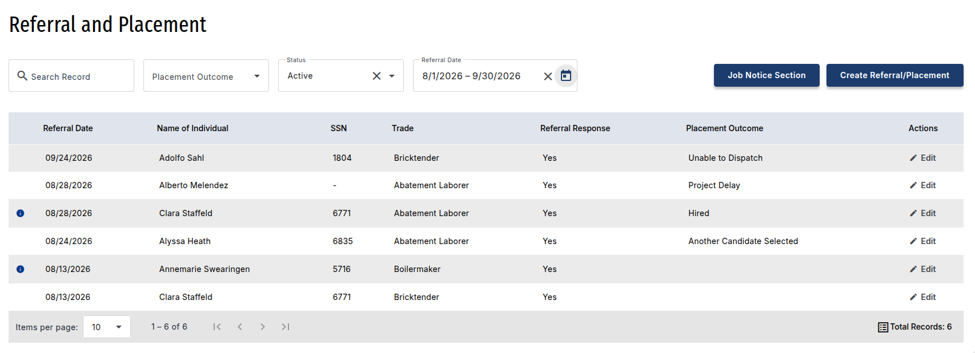
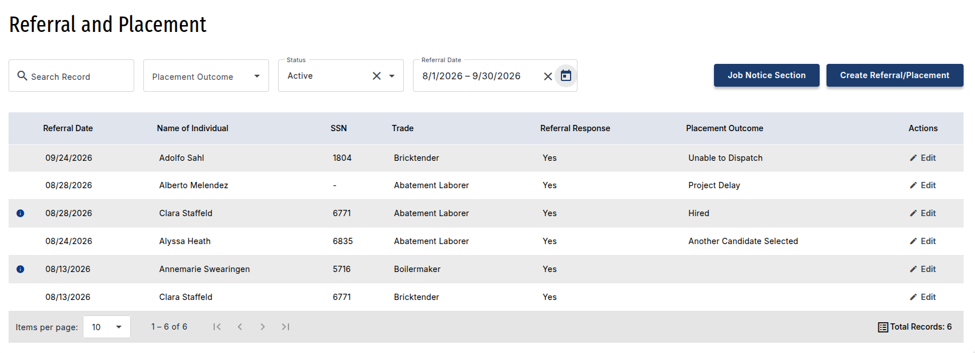
- Confirm the date range shown in the Referral Date field, then review the matching records in the table.
How the Date Range Works
Included Dates
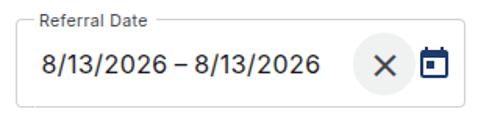
The filter includes the start date, the end date, and every date in between.
- For example, a range of July 14, 2026, through July 15, 2026, includes records dated July 14 and July 15.
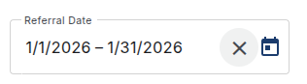
The Referral Date field displays dates in MM/DD/YY format, such as 07/14/26–07/15/26. The table may display the year using four digits. When the filter is applied, the results return to the first page and Total Records updates.
Find Records for One Specific Date
- Select the calendar icon in the Referral Date field.
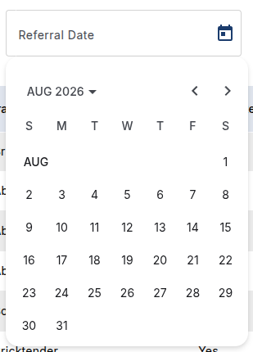
- Select the date you want to search. The calendar stays open.
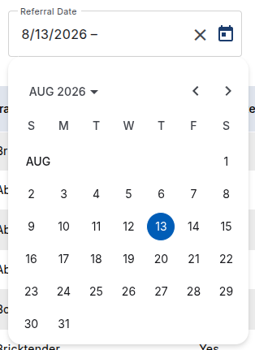
- Select the same date again. The calendar closes and the filter is applied.

- Confirm the selected date in the Referral Date field, then review the matching records in the table.
Change the Selected Date Range
- Select the X (Clear) icon beside the calendar icon to remove the current date range.

- Open the calendar and select a new start date and end date.
- Confirm the new range in the Referral Date field, then review the updated records in the table.
Clear the Date Filter
Select the X (Clear) icon beside the calendar icon. Both dates are removed, the unfiltered records return, and the results go back to the first page.
Use the Date Filter with Other Filters
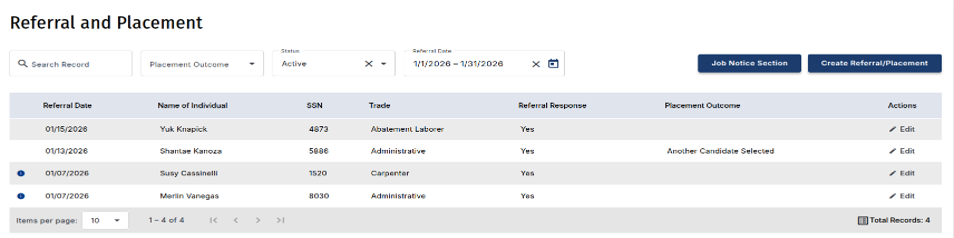
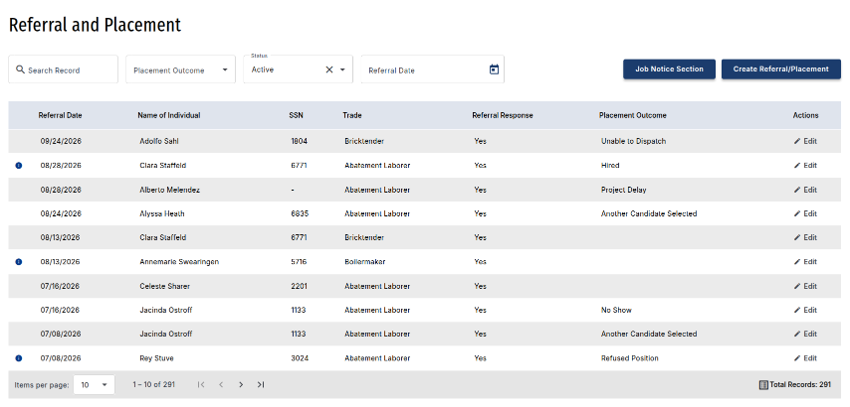
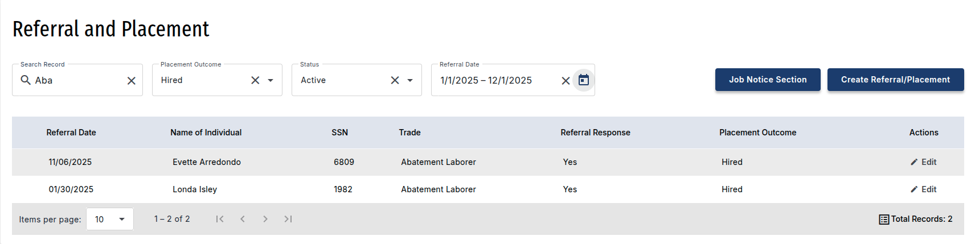
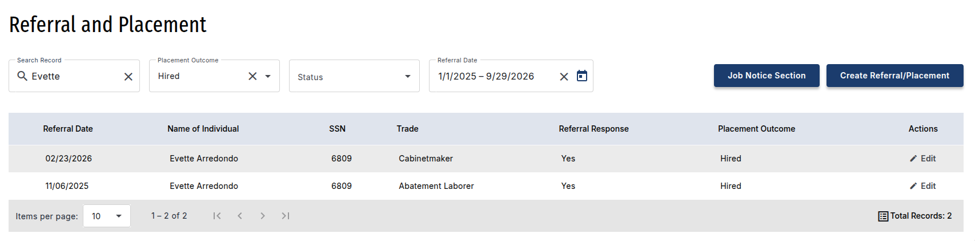
All active filters work together. You can use Search Record to find a specific record, Placement Outcome to filter by outcome, and Status to show Active or Disabled records. Status is set to Active by default.
Example 1: Results before a Referral Date filter is applied.
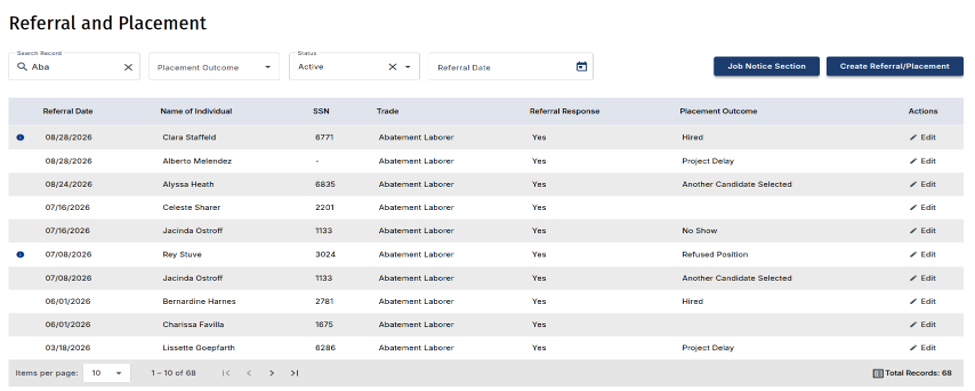
Example 2: Results after a Referral Date filter is applied.
If You See “No Data Found”
- Confirm that the selected range includes the participant’s referral date.
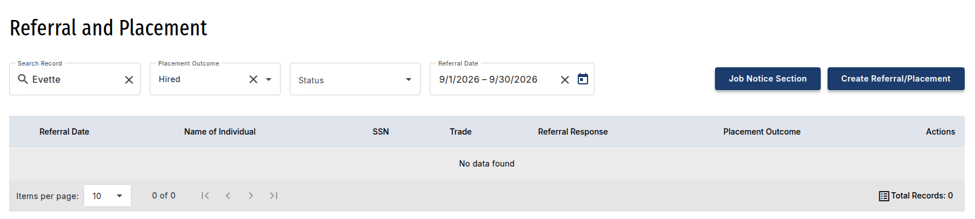
- Check the Search Record, Placement Outcome, and Status filters. Clear or expand any filter that may be restricting the results.

- Clear the current date range and select a wider range. If additional records are available, use the page controls or Items per page to review them.
If You Close the Calendar Before Finishing
If you select only one date and then click outside the calendar, the calendar closes and the filter is not applied. Open the calendar again and select both a start date and an end date.
Was this article helpful?
That’s Great!
Thank you for your feedback
Sorry! We couldn't be helpful
Thank you for your feedback
Feedback sent
We appreciate your effort and will try to fix the article